
- Certificate modernization: DSA, short RSA, and legacy PKCS#12 are rejected — audit Certificate Manager before you upgrade.
- Device API can upload/download configuration files with token auth — real fleet automation.
- Customizable SNMP trap alerts + GPS over SNMP, GPIO-triggered factory reset, and a refreshed front-panel view in the Web UI.
The System tab is the housekeeping of the router — admin security, firmware, time, schedules, notifications, logging, and the InControl uplink all live here.
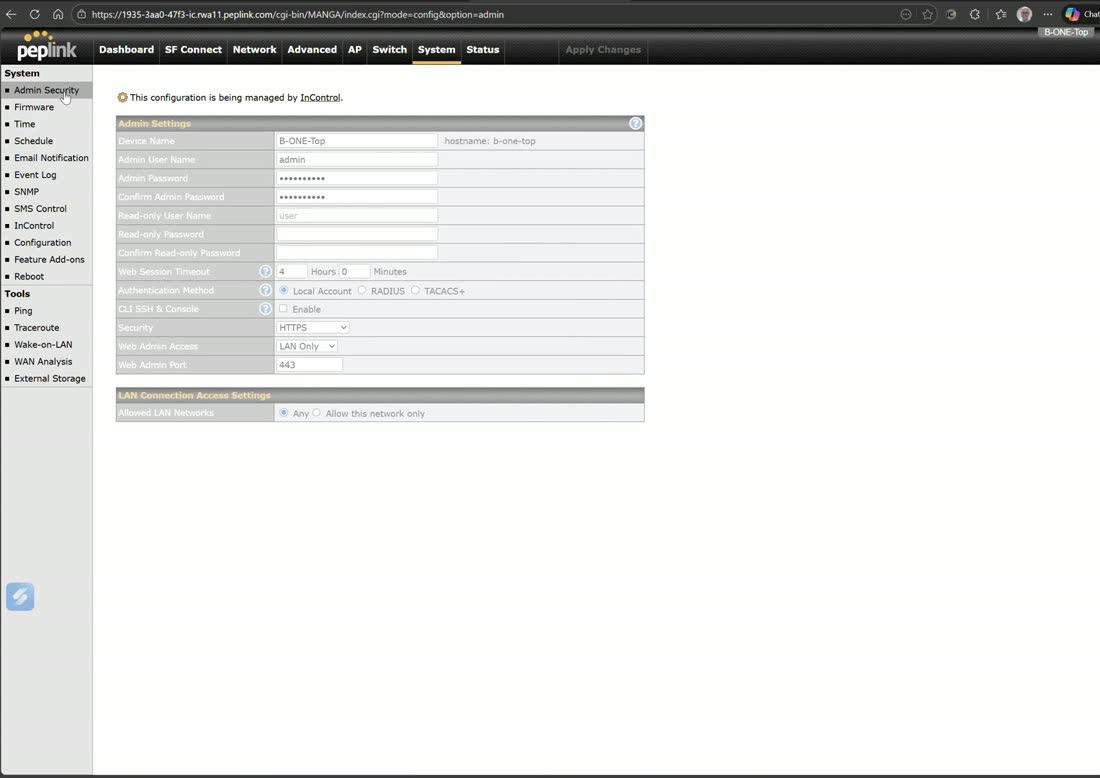
Admin Security: change credentials, force HTTPS, restrict the admin interface to trusted networks. From here you also reach manual firmware, manual time settings, and schedules you can apply to things like Wi-Fi SSIDs. Then email notifications (set up your own SMTP), event logging, remote syslog, mobile device URL, session and content-block logging, and SNMP.
Local or InControl?
Nearly everything on this tab — email notifications, event logging, content-block logging, SNMP — can be configured locally on the router or, far more easily, centrally from InControl. Peter’s own preference is to drive these from InControl and only fall back to local configuration when you deliberately want to stay off-cloud.
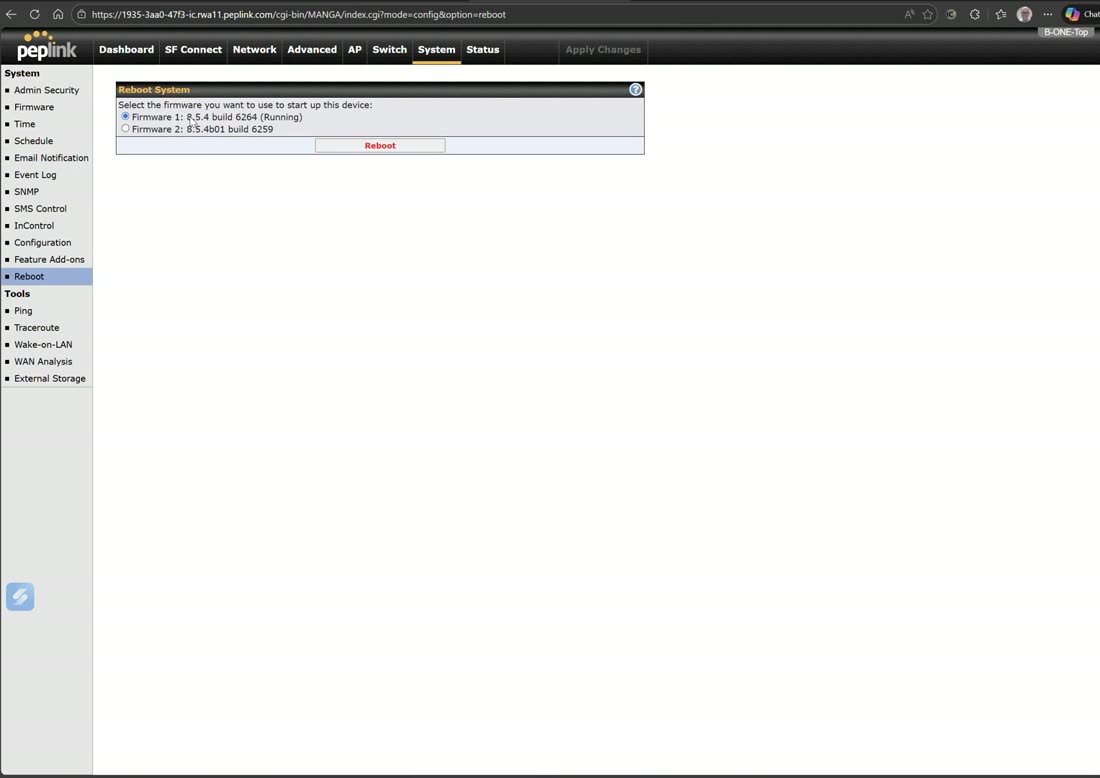
SMS control & firmware roll-back
SMS control is mainly for plans that require SMS, but it also lets you text commands to the router — you can reboot the device, change cellular settings, or switch cellular channels, and some commands work even when cellular has no data.
Firmware stores two images. In the walkthrough the router held 8.5.4 and an 8.5.4 beta build side-by-side, so you can reboot back to the previous firmware if an update misbehaves.
InControl uplink & add-ons
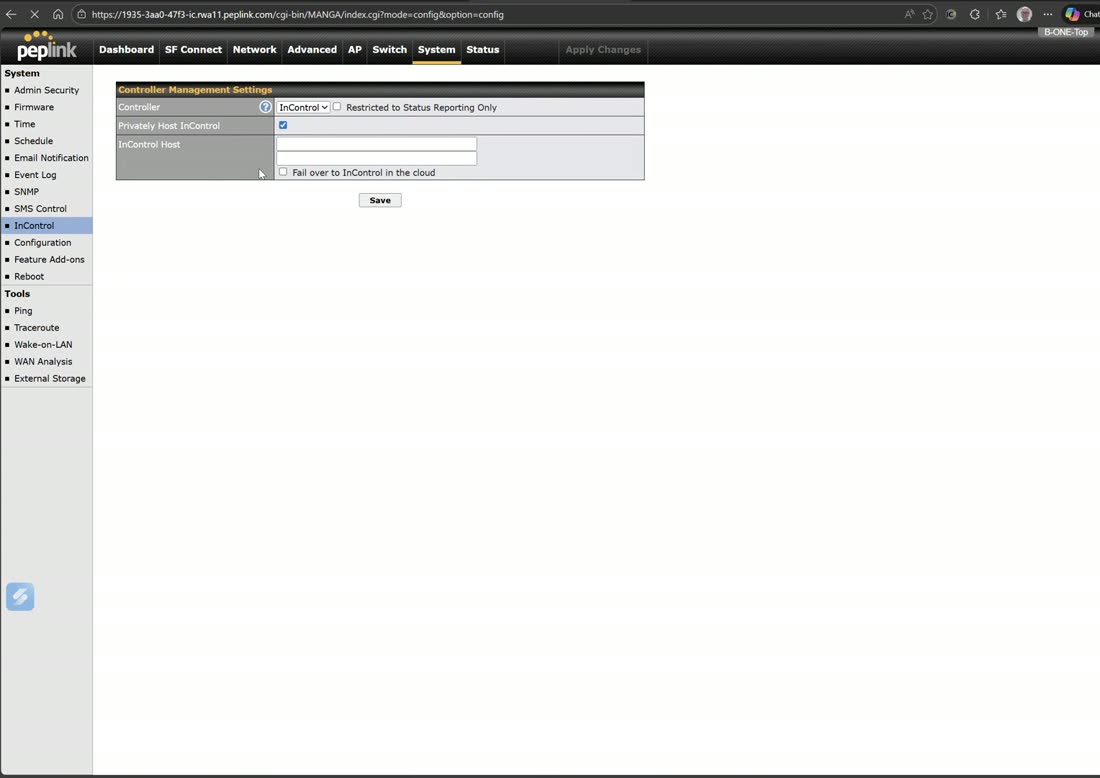
InControl uplink gives you three choices: use InControl, disable it, or point the router at a privately hosted InControl of your own — the InControl virtual appliance. From the same area you can restore a configuration, reset to factory defaults, download the current configuration, or upload one. Feature add-ons is where you paste license keys, such as the VLAN-as-WAN pack.
Config backup without a commit
With the exception of the WAN interfaces (where Save is a Save-and-apply that takes effect immediately), you can configure almost the entire router without ever committing a change — stage everything, then hit Apply Changes when you are ready.
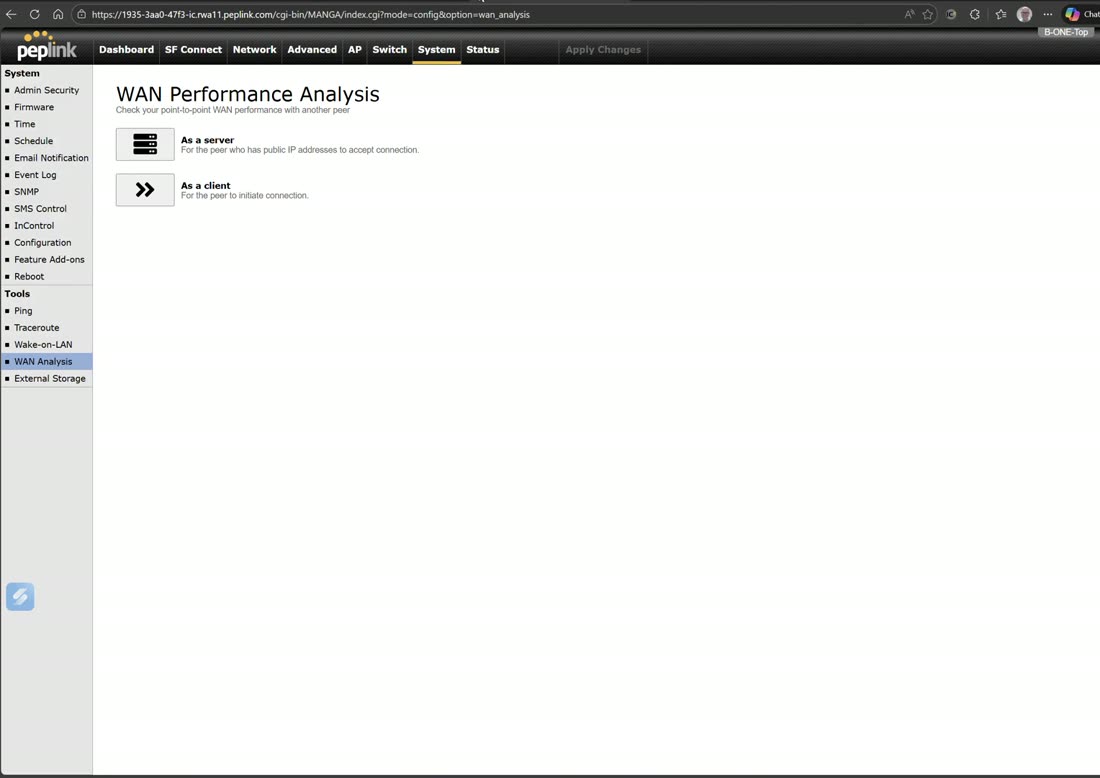
Tools include ping, traceroute, wake-on-LAN, and WAN Analysis. You can also reboot the device at any time. WAN Analysis runs one router as a server and another as a client so you can test the real throughput of every WAN at once (covered on the Status & Diagnostics page).
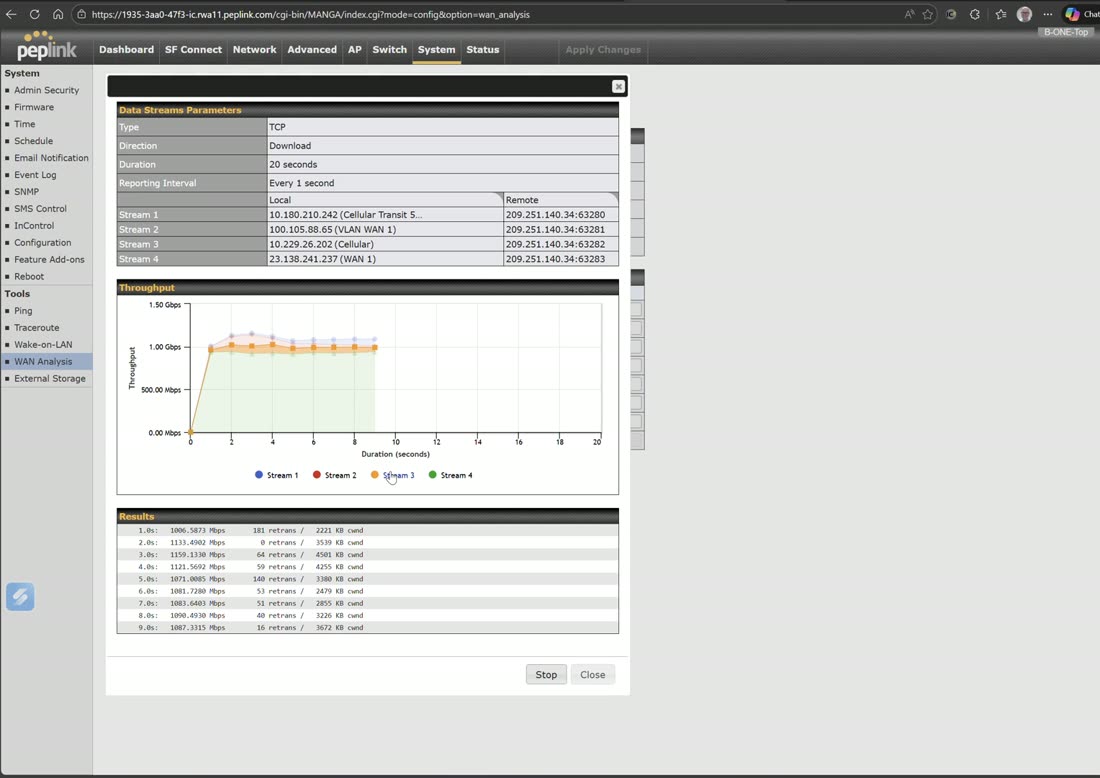
As server, apply the settings and the router listens on the chosen WAN interfaces. As client, pick the WANs to test — cellular 5G, Starlink, cellular, Ethernet WAN 1 — enter the remote device’s IP, run a download test and hit Start to measure them all together. Ethernet will naturally be the fastest, but the value is seeing every uplink’s performance side-by-side. It is, as Peter puts it, amazing for troubleshooting: all you need is another uplink device in server mode.