
- OneWeb joins Starlink with first-class WAN integration, and Starlink status now shows in WAN Details.
- New WAN status summary logs and failover enter/exit-backup event logs make outages self-explaining.
- Ethernet WAN gains IPv6 SLAAC/DHCPv6 connection modes; USB modem ports auto-detect Ethernet.
Click any connection on the dashboard to open its WAN settings. Peplink supports four WAN types, and they share most settings.
Ethernet WAN
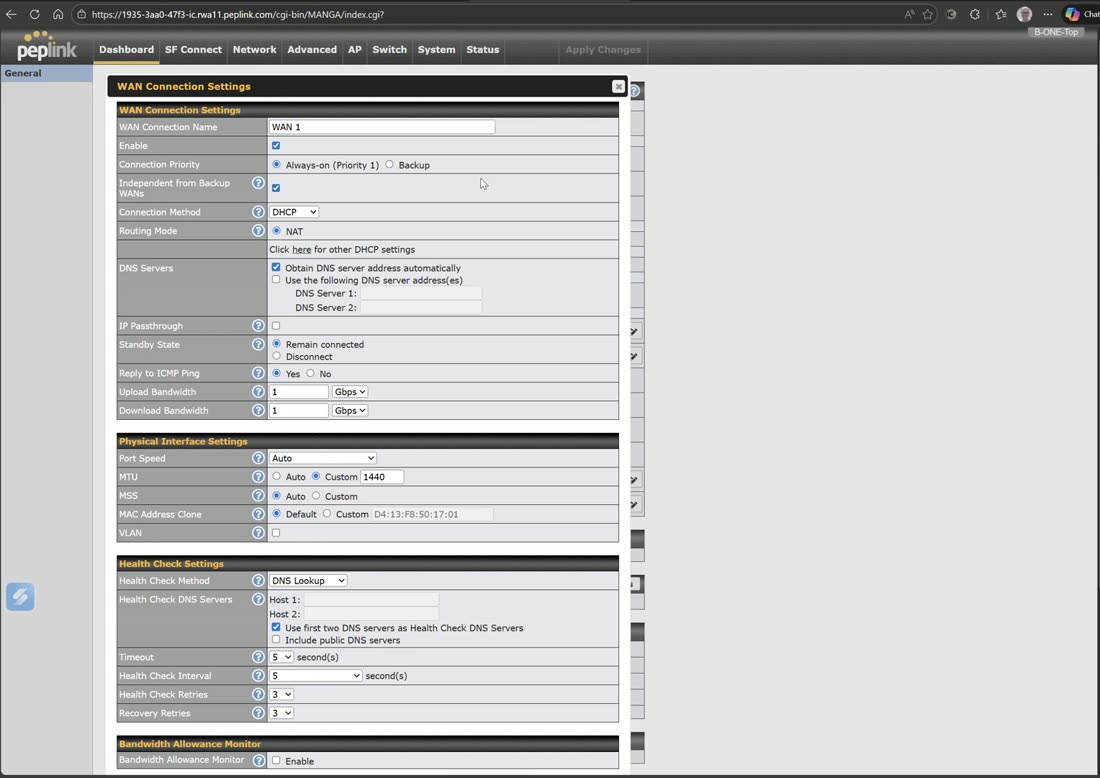
A WAN is enabled and always on, with the option to make it independent from backup WANs. Checking that box means this WAN is irrelevant to the failover status of the other WANs — it is above or outside their priorities. Connection method can be DHCP, Static, PPPoE, L2TP, or GRE. Routing mode is NAT by default; switch to IP Forwarding when you need the router to route rather than NAT.
“Independent from backup WANs” in practice
Say you have Starlink sitting in Priority 2. If you lose your primary internet, Starlink kicks on regardless of the status of this Ethernet WAN — because this WAN’s always-on state is independent of the priority failover happening among the other interfaces.
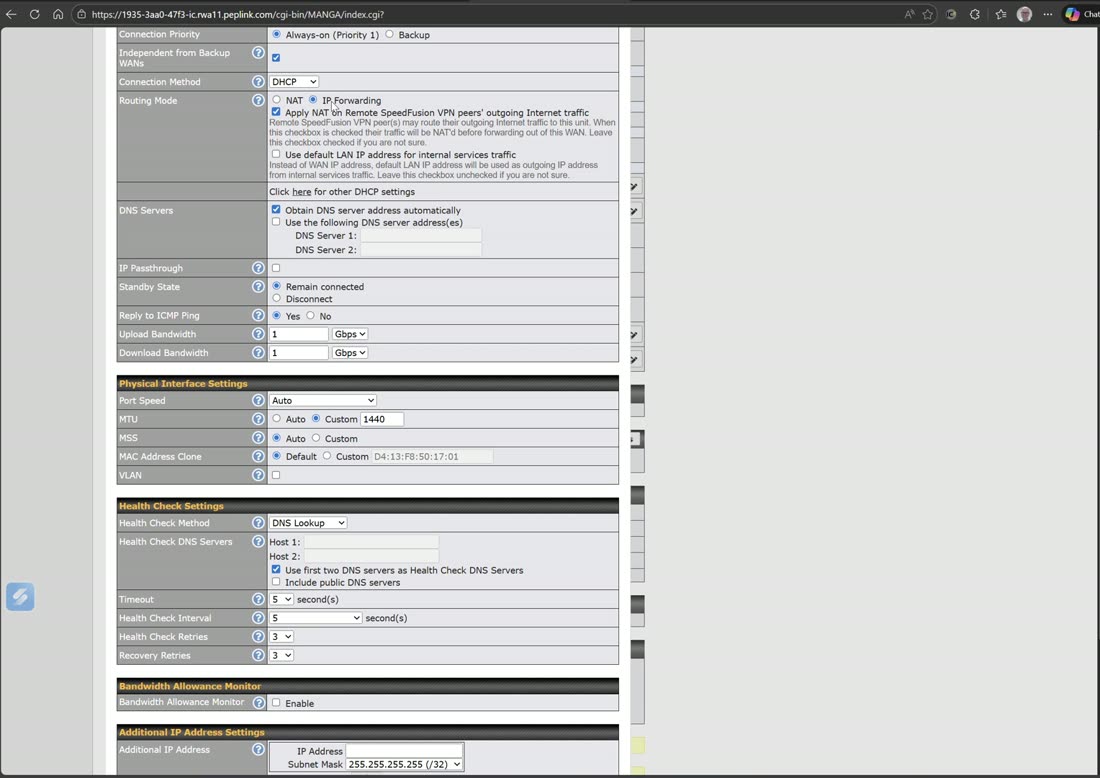
When you switch routing mode to IP Forwarding, two options appear: Apply NAT on remote SpeedFusion VPN outbound internet traffic, and use the default LAN IP address for internal-services tracking traffic. Turn these on or off depending on how you want traffic to route or NAT through the environment.
Understand routing vs NAT first
Make sure you understand the difference between routing and NAT before changing these options — they change how your network moves traffic.
You can also set a management IP, custom hostname, and DNS servers. IP pass-through passes the IP address received from DHCP or static straight through to the very first DHCP client on the LAN — mostly used for cellular connections, though it works on Ethernet too.
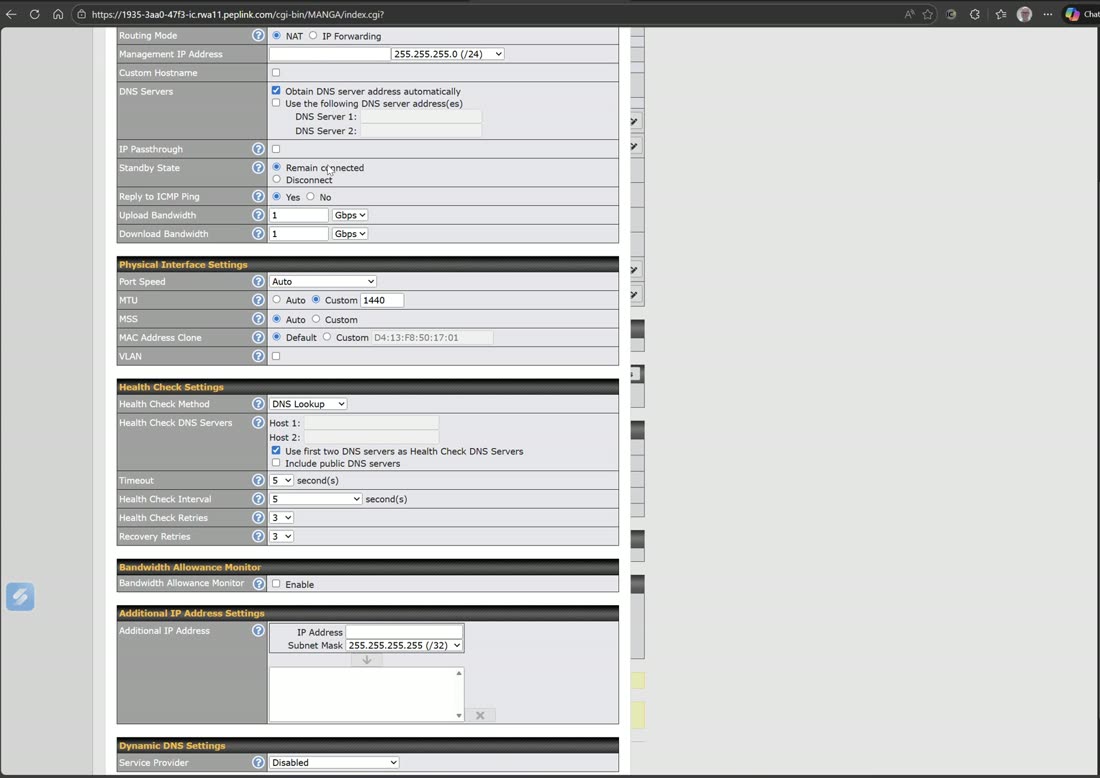
Standby state decides what a WAN does while it is not the active link:
- Remain connected — the link stays alive using a little data to keep it ready. Failover is faster, and you can still see background activity such as interface restarts and health-check failures on that circuit.
- Disconnected — the link uses no data in standby. The trade-off: when it does fail over it takes longer to authenticate and come back online, and because it is disconnected you won’t notice problems developing on that circuit.
Reply to ICMP ping can be blocked or allowed per WAN — blocking it is useful for PCI compliance and a few other things.
Upload & download bandwidth
Setting the WAN’s upload and download bandwidth is primarily used for overflow, but it also helps speed up detection for dynamic weighted bonding.
Physical port & VLAN tag
Physical port settings let you set the MTU, MSS, and MAC cloning, plus a VLAN tag on the interface. Use the tag when an ISP hands off internet on a specific VLAN (for example “we’re handing off VLAN 10”) and you are connecting to a trunk port upstream rather than an access port.
VLAN tag is not VLAN-as-WAN
Tagging the interface here is a tag applied to this WAN interface for a trunked upstream hand-off. It is not the same thing as VLAN-as-WAN / sub-interfaces (covered below).
Health checks
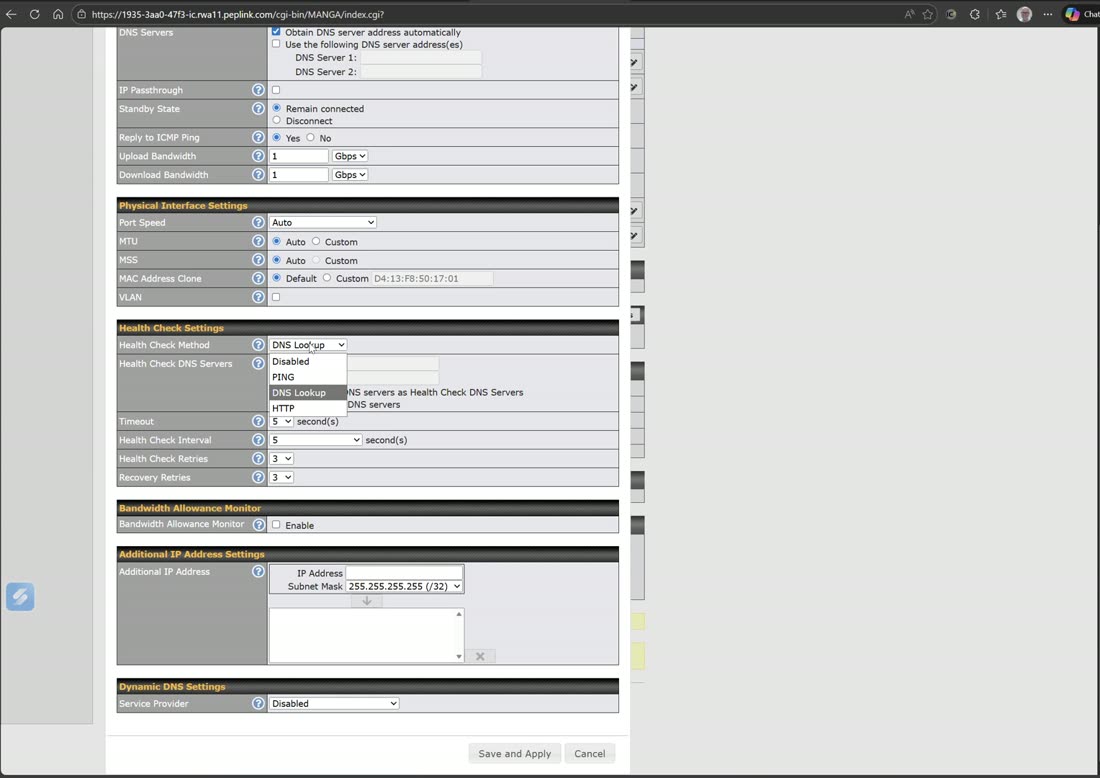
A health check decides whether a WAN is up. Ping pings a target based on your connection settings; DNS runs a lookup on the timeout and interval you set; HTTP fetches a site such as Google or Bing. HTTP is especially good on broadband because an unpaid account often still answers DNS and ping but redirects HTTP to a captive portal telling you to pay the bill — so HTTP catches a “working but useless” link by confirming it can actually reach google.com or bing.com. Cellular adds Smart Check, a DNS+HTTP combination available only on cellular WANs.
Bandwidth Allowance Monitor
The Bandwidth Allowance Monitor mostly applies to Starlink and cellular circuits, but if you have a broadband circuit with a cap (say one terabyte per month) you can program that limit here to avoid overages.
Additional public IPs
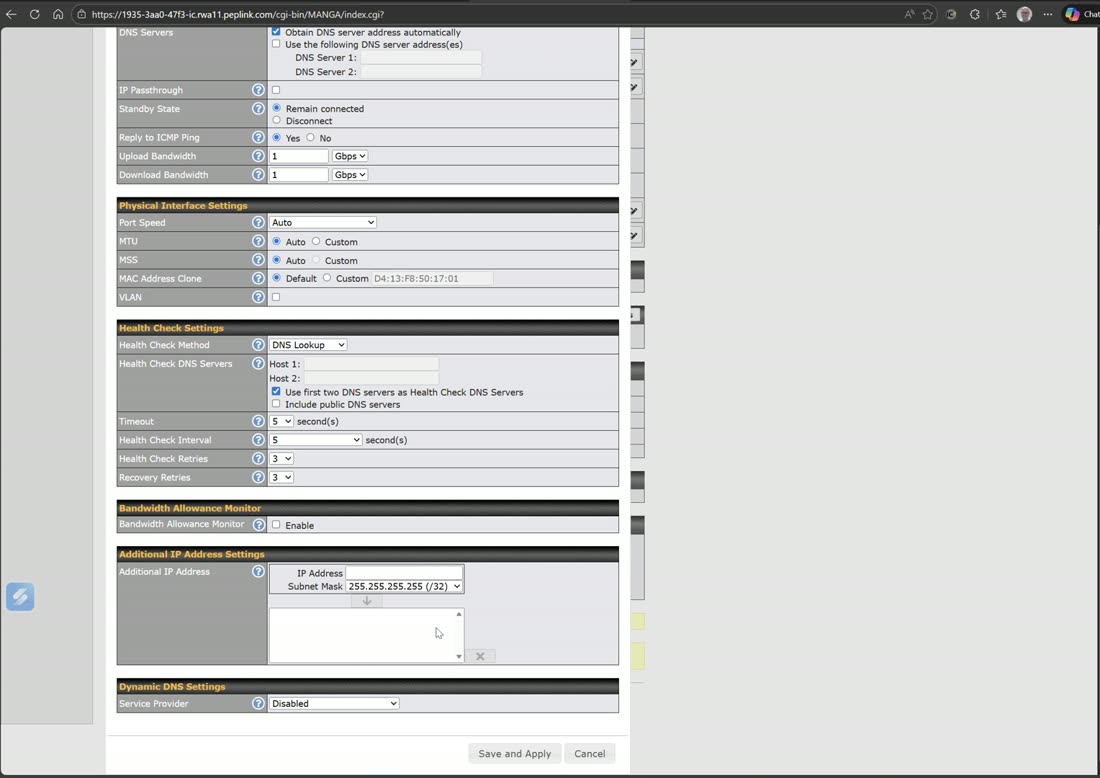
If your provider routes you a CIDR block — for example you have a single /30 upstream and they route you an additional subnet to your peering address — add the extra addresses here. Alternatively, switch the WAN from NAT mode to IP-forward mode, put the routed subnet on a VLAN, and use it on your LAN. These addresses become available for one-to-one NAT mappings. There is also a custom dynamic DNS option where you can pick a dynamic DNS provider and set it up.
Cellular WAN
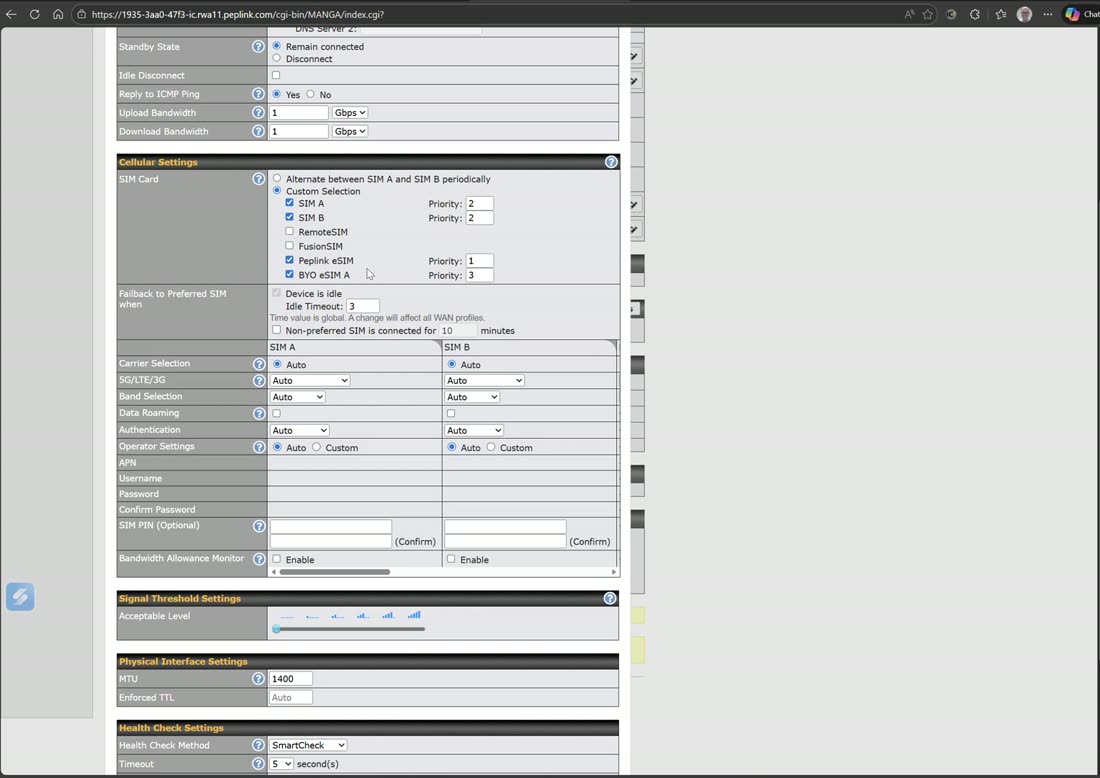
Cellular is the same as Ethernet WAN but adds cellular settings and a signal threshold. Choose which SIMs to use — Remote SIM, FusionSIM, uplink eSIM, Peplink eSIM, and bring-your-own eSIM (BYO SIM A/B) — and once checked, assign each a priority. For Remote SIM you enter the serial number of your SIM Injector, optionally followed by :port, or let the router scan for an available SIM.
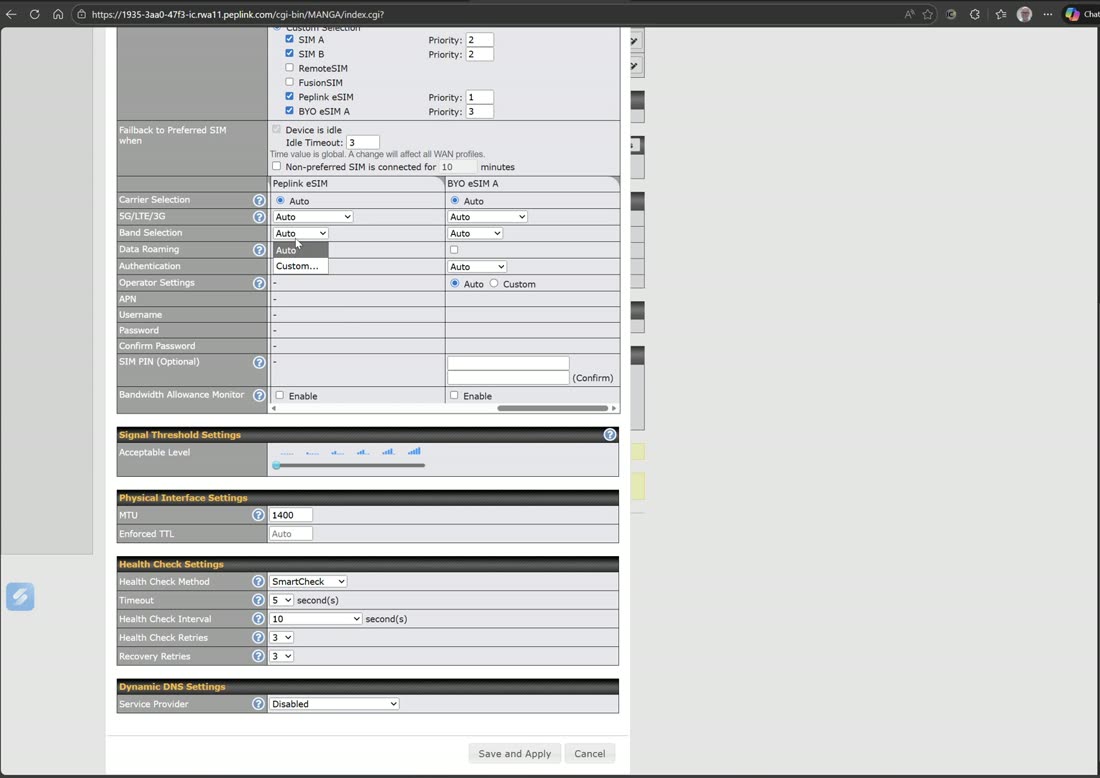
Pick your network mode (5G SA, 5G/LTE, LTE) and customize band selection to lock the bands you want. Set data roaming, authentication, and carrier operating settings including APN, username, password, and SIM PIN. Each SIM also gets its own bandwidth allowance — for example give SIM A and SIM B 300 GB each so SIM A’s 300 GB is used first, then it fails over to SIM B, then shuts off if you want.
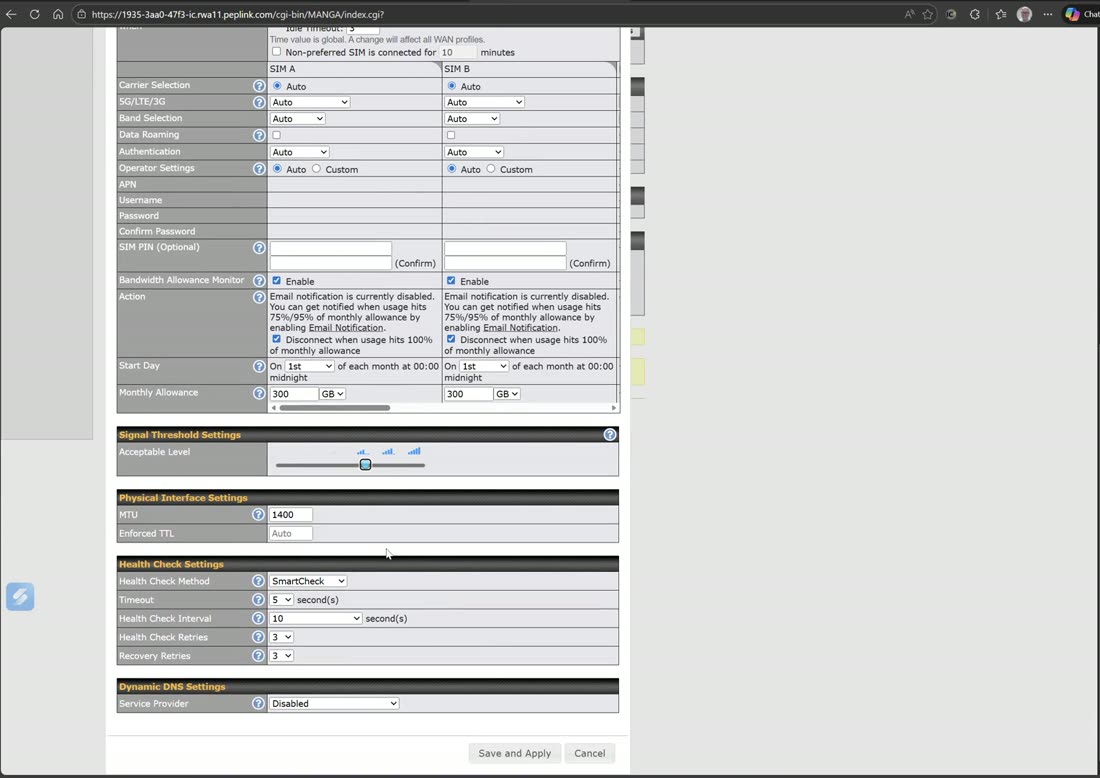
The signal threshold tells the router when to look for another SIM. Set it to, say, three bars and it will stay on SIM A above that level and fail over to SIM B when it drops below — letting you run something like Verizon on one SIM and T-Mobile on the other.
VLAN-as-WAN & Wi-Fi WAN
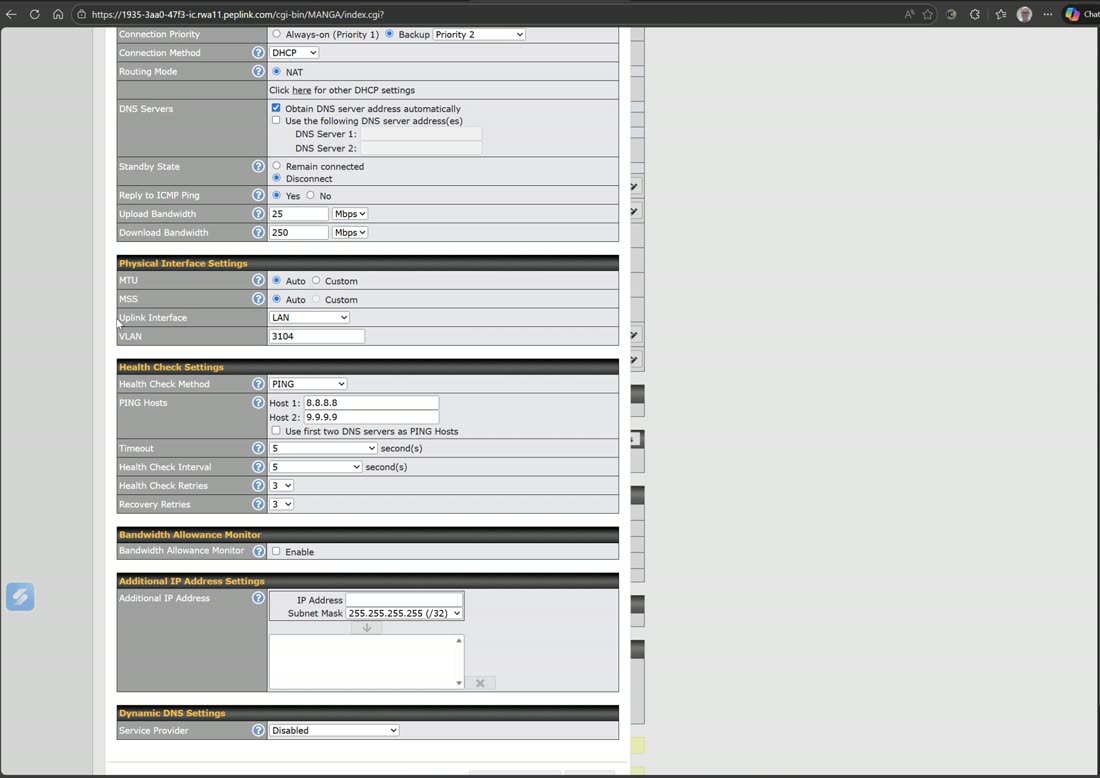
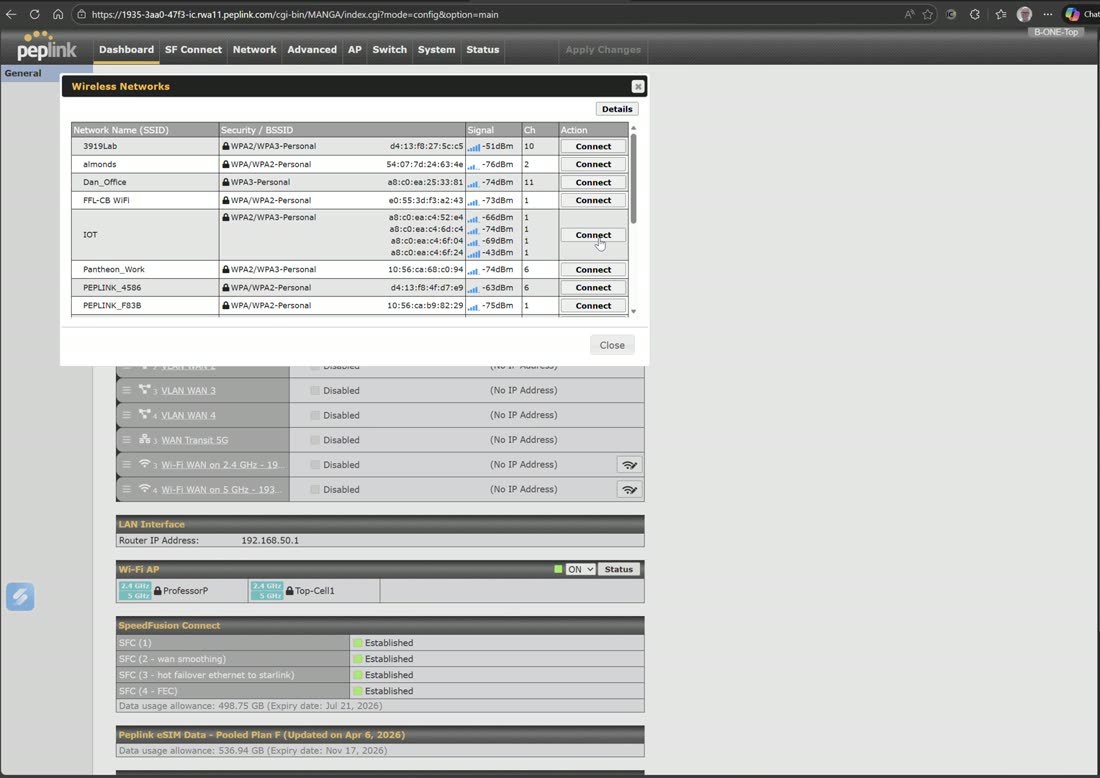
VLAN-as-WAN is essentially the same as an Ethernet WAN, except it gets an uplink interface and the VLAN applies to a sub-interface rather than the WAN interface, so you can pick a specific WAN or LAN port. That lets you convert a LAN port into a WAN — for example reserving LAN 4 as an access port for the VLAN so Starlink connected to LAN 4 becomes a WAN. Wi-Fi WAN lets the router use an upstream Wi-Fi network as a WAN: enable it, scan for networks with the magnifying-glass icon, pick one, and enter the password. Otherwise it behaves like Ethernet, and you can edit saved profiles at the bottom of the Wi-Fi WAN page.
Field note
The router ships with one VLAN-as-WAN license (up to three WANs total). Need more WAN interfaces? A three-pack VLAN-as-WAN license adds them.