
- SaaS traffic classification in Connection Sessions now aligns with SaaS-based outbound rules.
- Hostname rules that resolve to many addresses are recorded correctly.
Outbound policy is a core Peplink technology — if you go through the training protocols you learn outbound policies as a core skill. It decides which connection each flow uses: which WAN, or which SpeedFusion tunnel. Rules are evaluated top-down.
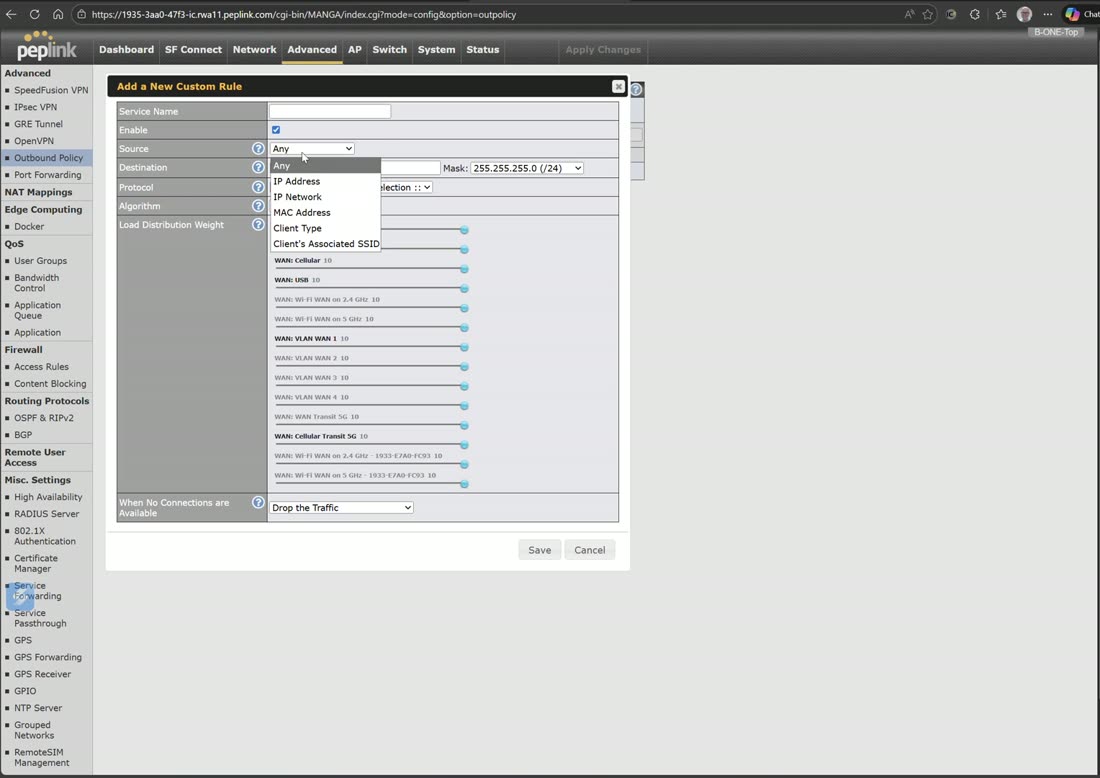
When you click Add Rule you name the service, then set a match:
- Source — IP address, IP network, MAC address, client type, or associated SSID. When the router is connected to InControl you also get groups, group networks, and group MAC addresses.
- Destination — IP address, IP network, domain name, and (when InControl-connected) SaaS and region.
- Protocol — TCP, UDP, IP, and DHCP tag.
The eight algorithms
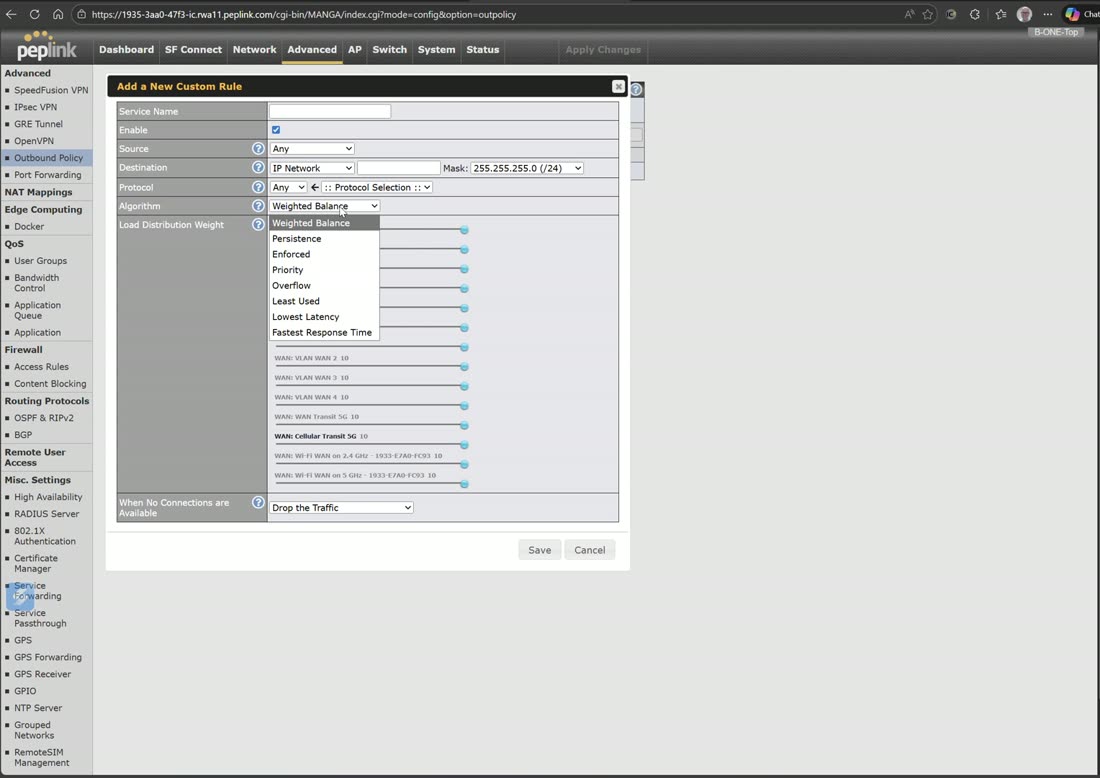
- Weighted Balance — split sessions/packets across WANs by weight.
- Persistence — keep a source (or destination) pinned to one WAN (for sites that break when the IP changes).
- Enforced — force matching traffic onto a specific WAN.
- Priority — use WANs in a set order, falling to the next when one is down.
- Overflow — fill one WAN to its bandwidth setting, then spill to the next.
- Least Used — start each session on the least-used link (by up- or downlink).
- Lowest Latency — use the WAN with the lowest latency to the third hop.
- Fastest Response — probe all chosen WANs per session and use whichever answers first. Peter pairs this with BGP on a multi-WAN router: reject all learned routes, then let a fastest-response rule pick the WAN that reaches each destination quickest.
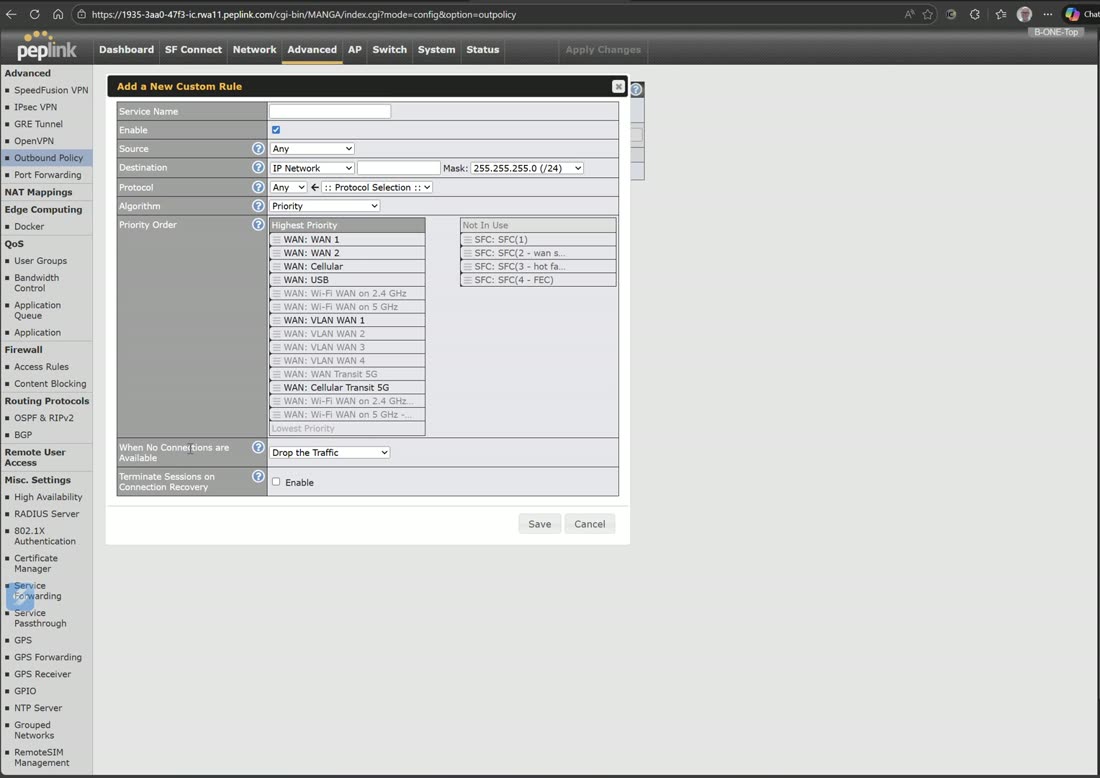
Priority rules add two choices. First, if none of the connections in the policy apply: drop the traffic or fail through to the next rule. Second, when a higher-priority link becomes available: terminate the sessions on the other WANs and pull them up to this WAN, or leave them where they are.
Field note
Peter very rarely checks the “move existing sessions” option — only when he’s using something like bonding and wants to force everything over to it. Otherwise he leaves it alone.
You must steer traffic at a tunnel — it isn’t automatic
This is the point people miss: just creating a SpeedFusion tunnel does not mean you’re using it. You have to tell the router (or the clients) what you want each tunnel for. In SpeedFusion Connect there are four ways to do this, and they are the same steering choices as an outbound rule:
- Route by cloud application
- Route by SSID
- Route by LAN client
- Advanced outbound policy (your own custom rule)
Example — Teams / Zoom / FaceTime to WAN Smoothing
To protect real-time calls, route by cloud application and point Microsoft Teams, Zoom, and FaceTime at your WAN Smoothing tunnel. That bonds all your connections together for the lowest-latency, most resilient path. It costs the most bandwidth because it uses every link at once, but it ensures really good Teams, Zoom, and FaceTime calls.
Route by SSID works the same way for devices: choosing bonding and FEC on a base SSID creates extra SSIDs (e.g. “bonding” and “FEC” versions). Connect a streaming camera to the FEC SSID for forward error correction, or to the bonding SSID to aggregate all active WANs. Route by LAN client lets you pin a specific device — say a network switch or an AP — to always go out over a chosen tunnel. See the SpeedFusion section.
Webinar: deep dive into Outbound Policy
Professor P. will discuss Outbound Policy and its role in traffic shaping within your network. Discover how you can control the routing of your…
From Peplink University with Professor P.
Watch: related training videos
- Peplink University Monthly Webinar | Deep Dive into Outbound Policy (Peplink University, 69 min)
- Support | How to Do Outbound Policy and Application Steering Within a SpeedFusion Tunnel (Peplink University, 8 min)
- Browse the full Video Library →