
These tools are what make zero-touch real: ship a device, plug it in, and it configures itself.
Adding a device by serial
At the organization level, Organization Settings → Add Devices lets you register a router by serial number. Because the org contains groups, you’ll be prompted to select which group the device joins — devices added at the org level always land in a group. Enter the serial number, add a tag, and hit Next.
Device Management: one pane of glass
Device Management shows every device across the org — where it lives, and what firmware it runs — and you can search by serial number, ICC ID, or almost anything. It’s ideal for checking firmware or finding a stray device. Select a device and you get a Tag action plus an Actions menu right from the org level: move or remove the device, push firmware, top-up a SpeedFusion or eSIM data plan, lock cellular WANs to the active SIM, install an eSIM (CSV upload for bulk), update cellular module firmware, and enable remote assistance (for seven days, or allow direct connection until turned off).
Device IP settings
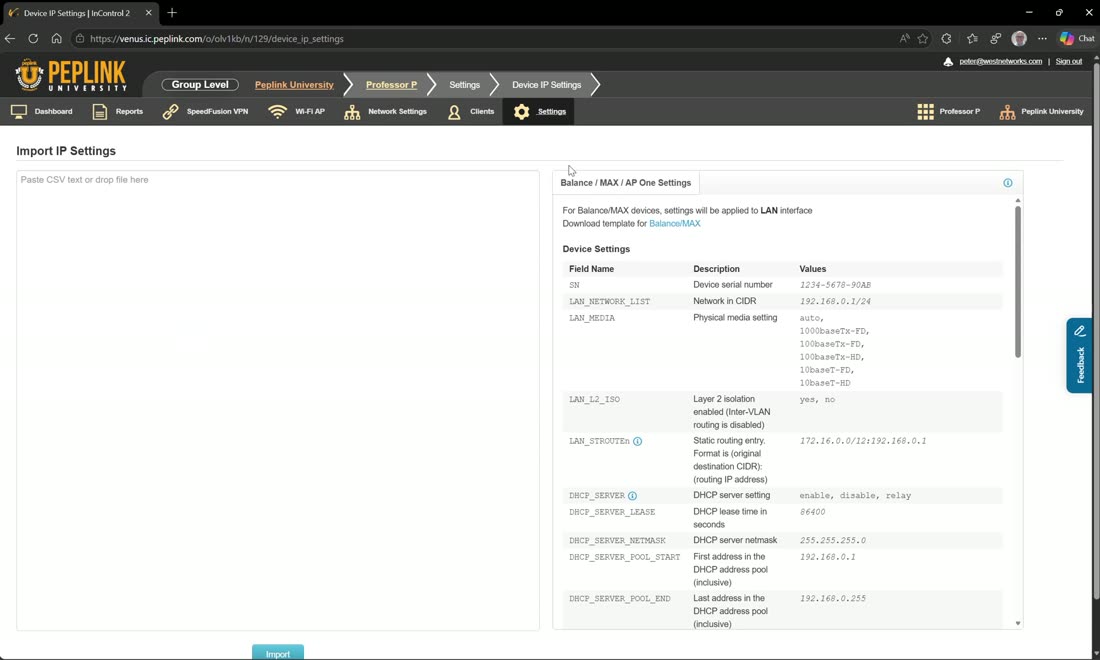
Device IP settings is your IP manager: define VLAN 10 once, then assign each device a unique VLAN 10 subnet (.51, .52, .53…) here. One VLAN, a hundred unique sites.
Don’t use VLAN Networks as your IP manager
Peter’s warning: VLAN networks apply by tag and name, and it’s easy to duplicate them — creating a “VLAN 10” for site one, another “VLAN 10” for site two, and so on. A pile of duplicate VLAN 10s gets dangerous and hard to manage. Instead create VLAN 10 once and use Device IP settings to make the subnet unique per site. You don’t need 100 VLAN 10s for 100 sites — you need one.
Device system management
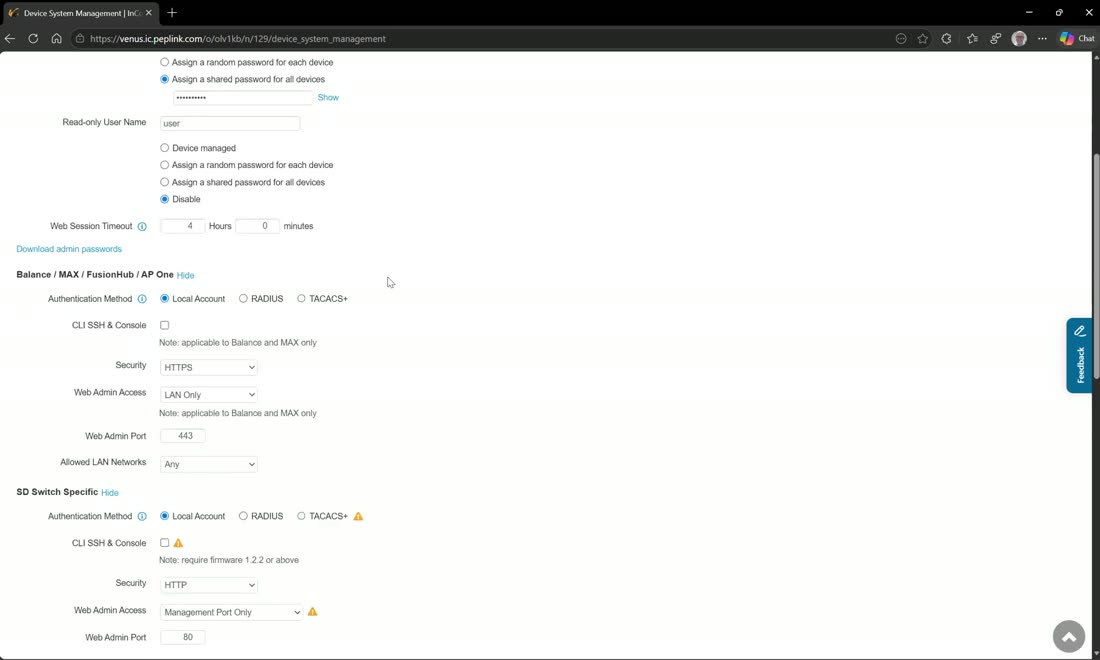
Device system management pushes defaults from the group: default username, default password, default authentication options, time-server settings, logging, SNMP, NetFlow, Bluetooth, scheduled reboot, and an external InControl appliance — use that last one to reroute devices to a private InControl or IQVIA instance.
InControl options & bulk configurator
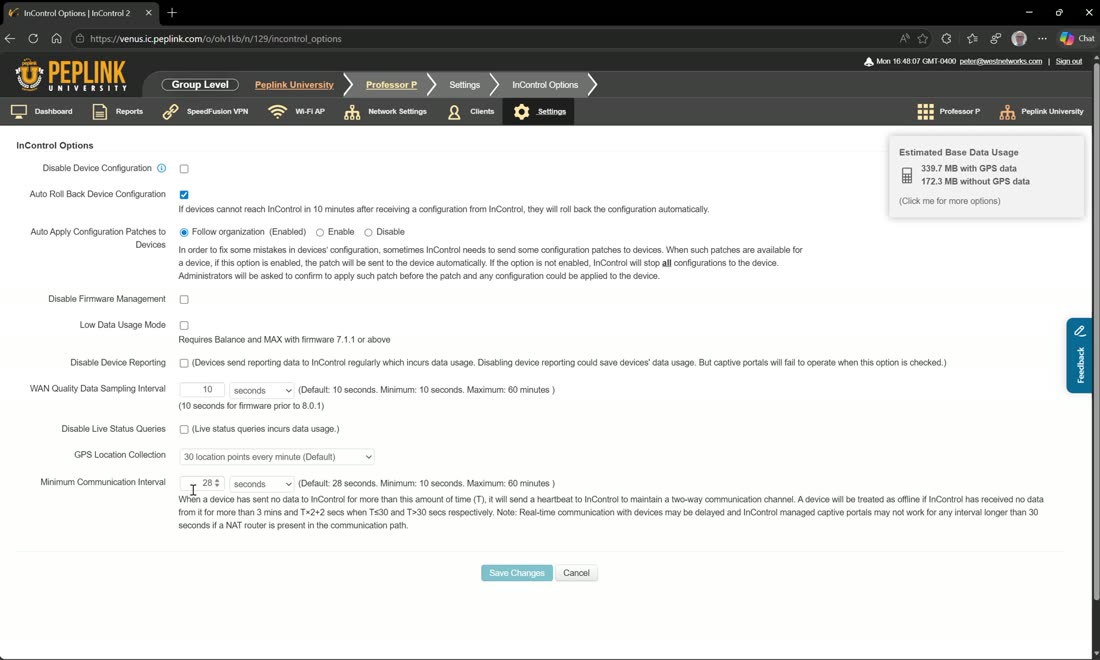
InControl options control how much InControl does and how often. You can disable and control configuration auto-rollbacks, apply configuration patches, disable firmware loading, tune how often the device polls, and enable a low-data-usage mode — which drops management overhead from a couple hundred MB/month down to around 1 MB/month.
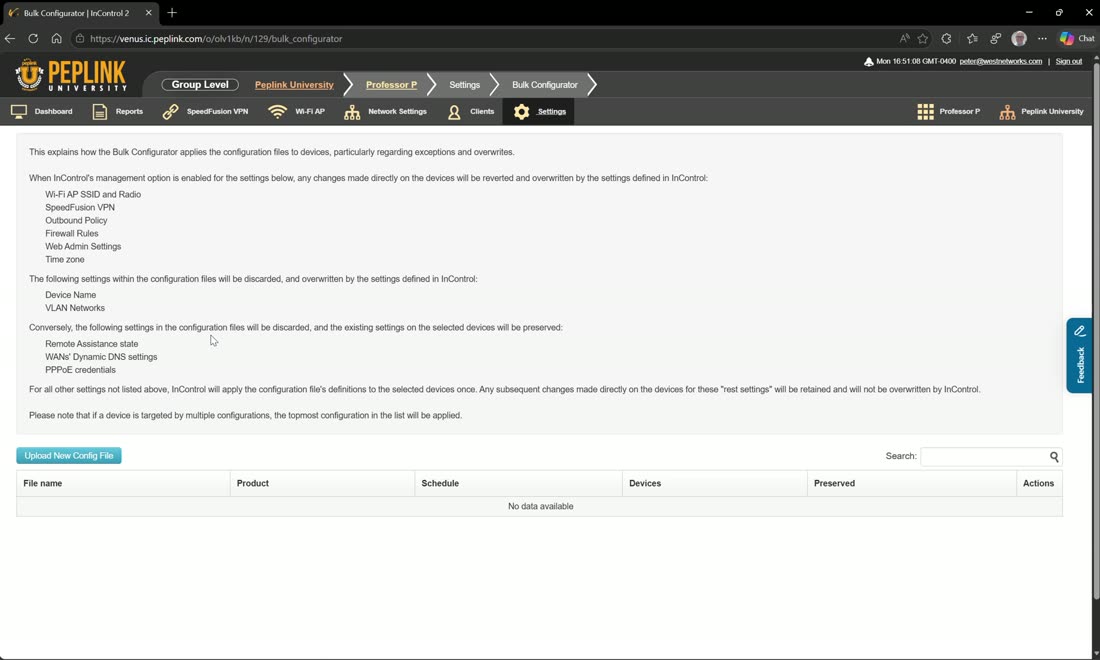
The bulk configurator takes a complete router configuration — you build it on a Peplink router, save it, and upload it here — then applies it to every device matching a hardware type and tag. Build one config for a BR1, assign it to anyone carrying the “bulk” tag, and 100 BR1s come online, download it, and self-configure.
Remove the bulk tag when you’re done
The bulk configurator overwrites locally configured settings, so remove the bulk tag once devices are provisioned if you want to configure them independently afterward. One exception: InControl options override bulk options — so if bulk sets a default IP of 192.168.5.1 but Device IP settings assigns .51, .52, .53…, the per-site IPs still win. Your unique per-site addressing survives the bulk push.
Watch: related training videos
- Support | How to set up Zero-Touch Configuration (Peplink University, 12 min)
- Peplink PCI DSS 4 Hardening Guide | Peplink University | Zero Touch Deployment (West Networks, 23 min)
- Browse the full Video Library →