
- Multi-APN: one cellular module can hold multiple APN connections at once (5GN modules).
- IPv6 on cellular for a wide range of 5G/LTE modules, plus 5G SA on 5GD modules and 5G SA carrier-aggregation control.
- Configurable 5G signal thresholds, network-provided MTU handling, jumbo frames on selected models, and dozens of cellular reconnect fixes.
Under Network → WAN you set the priority order of every interface and reach the advanced WAN features. Each WAN interface — Ethernet, cellular, VLAN-as-WAN, or Wi-Fi WAN — opens to a common set of settings that control how it fails over, how it is health-checked, and how much of its bandwidth the router will use.
Priority and “independent from backup WANs”
Interfaces are ordered into priorities (Priority 1, Priority 2, and so on) — higher priorities are used first and lower ones stand by for failover. Each WAN also carries an always-on / independent from backup WANs option.
Independent from backup WANs
Checking this box takes the WAN outside the failover priority list. As Peter puts it: if you lost your primary internet, a WAN marked independent (for example a Starlink in Priority 2) kicks on regardless of the status of the other interfaces — it sits above or outside the normal priority ordering rather than waiting its turn.
Standby state: remain connected or disconnected
Every WAN has a standby state that decides what it does while it is not the active connection:
- Remain connected — the WAN stays up and uses a little data to keep itself alive. Because it is live, the router keeps running health checks in the background, so you can still see interface restarts, health-check failures, and other problems on that circuit.
- Disconnected — the standby WAN uses no data. The trade-off is that failing over to it takes longer (it has to authenticate and come back online), and while it is disconnected you have no visibility into whether anything is wrong with that circuit.
Reply to ICMP ping
Reply to ICMP ping
You can block or allow ICMP ping on each WAN interface. Blocking it is useful for PCI compliance (and a few other cases) where you don’t want the WAN answering pings from the internet.
Upload and download bandwidth
Set the interface’s upload and download bandwidth here.
Why set bandwidth?
These values are primarily used for overflow (so the router knows when a circuit is full and traffic should spill to the next one), but they also help speed up detection for dynamic weighted bonding. Setting them accurately makes bonding and overflow behave better.
Health check settings
On Ethernet, Wi-Fi, and most WAN types the health check can be one of three methods:
- Ping — pings based on the connection settings you configure.
- DNS — runs a DNS query on the timeout and health-check interval you set.
- HTTP — fetches a site such as Google or Bing. This is especially good on broadband circuits: if a bill goes unpaid, ping and DNS may still “work” but the ISP redirects you to a captive portal — HTTP catches this because it actually verifies it can reach
google.comorbing.com.
Smart Check (cellular only)
Cellular WANs get a fourth health-check option, Smart Check — effectively a combination of DNS and HTTP, and a cellular-only way to confirm the connection is really reaching the internet.
Bandwidth allowance monitor
The bandwidth allowance monitor mostly applies to metered links such as Starlink and cellular, but you can also program it for a broadband circuit with a cap (for example one terabyte per month) to avoid overages. On cellular, allowances can be set per SIM: give SIM A and SIM B each their own limit (e.g. 300 GB each) and the router fails over to the next SIM once the first is exhausted.
Connection-specific settings
Beyond the shared settings, each WAN type adds its own:
- Cellular — SIM selection and priorities (SIM A/B, remote SIM, FusionSIM, eSIM, BYO eSIM), APN / username / password / SIM PIN, network mode and band selection, data roaming, and a signal threshold that tells the router when to look for another SIM (e.g. drop below three bars on SIM A and fail over to SIM B).
- VLAN-as-WAN — identical to an Ethernet WAN, but it adds an uplink interface picker: instead of tagging the WAN interface, the VLAN is a sub-interface on a chosen port (for example turning LAN 4 into the port that carries a Starlink dish). See the Network tab for VLAN-as-WAN licensing.
- Wi-Fi WAN — scan for Wi-Fi networks, connect and enter the password, and edit saved profiles; otherwise the same as Ethernet.
Other WAN options
- Connection method — DHCP, Static, PPPoE, L2TP, or GRE.
- Routing mode — NAT or IP forwarding. Switching to IP forwarding reveals apply NAT on remote SpeedFusion VPN outbound internet traffic and use default LAN IP address for internal services tracking traffic. Understand routing vs. NAT before changing these.
- Management IP, custom hostname, DNS servers.
- IP pass-through — passes the DHCP/static IP straight to the first DHCP client on the LAN; mostly used on cellular but also possible on Ethernet.
- Physical port settings — MTU, MSS, MAC cloning, and VLAN tagging. This tag is applied to the WAN interface for a trunked handoff (e.g. an ISP delivering internet on VLAN 10) and is not the same as VLAN-as-WAN / sub-interfaces.
- Additional IP addresses — add extra addresses from a routed CIDR block, or switch to IP-forwarding mode and put the routed subnet on a VLAN.
- Custom dynamic DNS.
Advanced WAN features
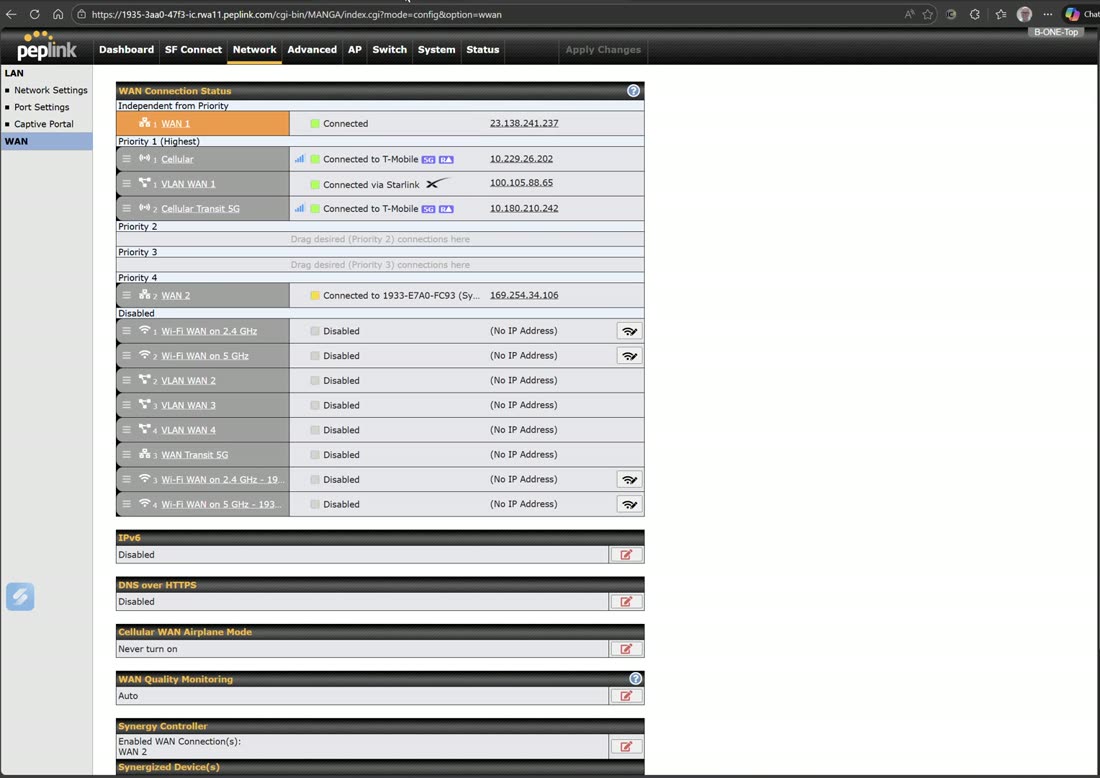
The Network → WAN screen is also where you set interface priority and reach extra features: enable IPv6 on Ethernet WANs, turn on DNS-over-HTTPS, schedule cellular WAN airplane mode, run WAN quality monitoring, and configure Synergy Mode and Starlink Mode.
Synergy Mode
Synergy Mode lets one Peplink router absorb the WANs of a second Peplink (e.g. a MAX Transit Pro) as if they were its own. Enable a WAN for synergy, save, then factory-reset the downstream unit — it boots and synergizes, and its cellular/5G interfaces appear on the primary router.
Complete Synergy Mode setup guide →
Starlink Mode
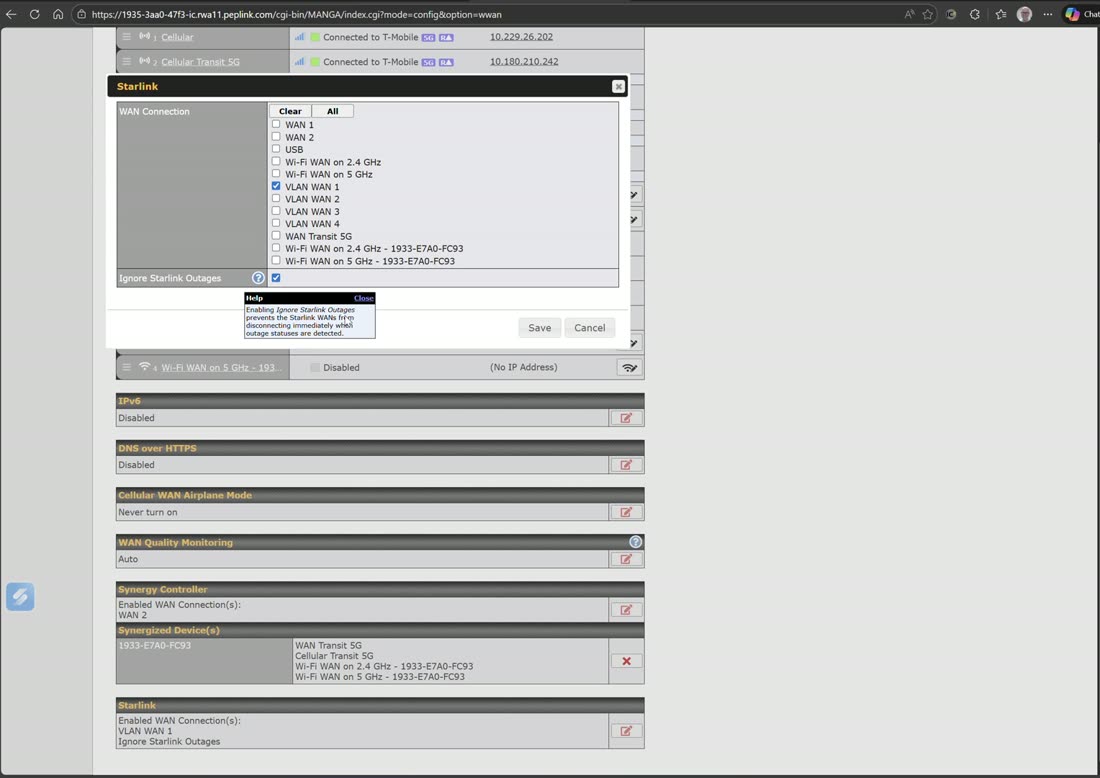
Starlink Mode brings a Starlink dish in as a fully managed WAN. Turn it on for the VLAN-as-WAN the dish is on and check ignore Starlink outages to improve stability. The dish then shows a Starlink badge, and full Starlink details (and reboot/stow) appear.
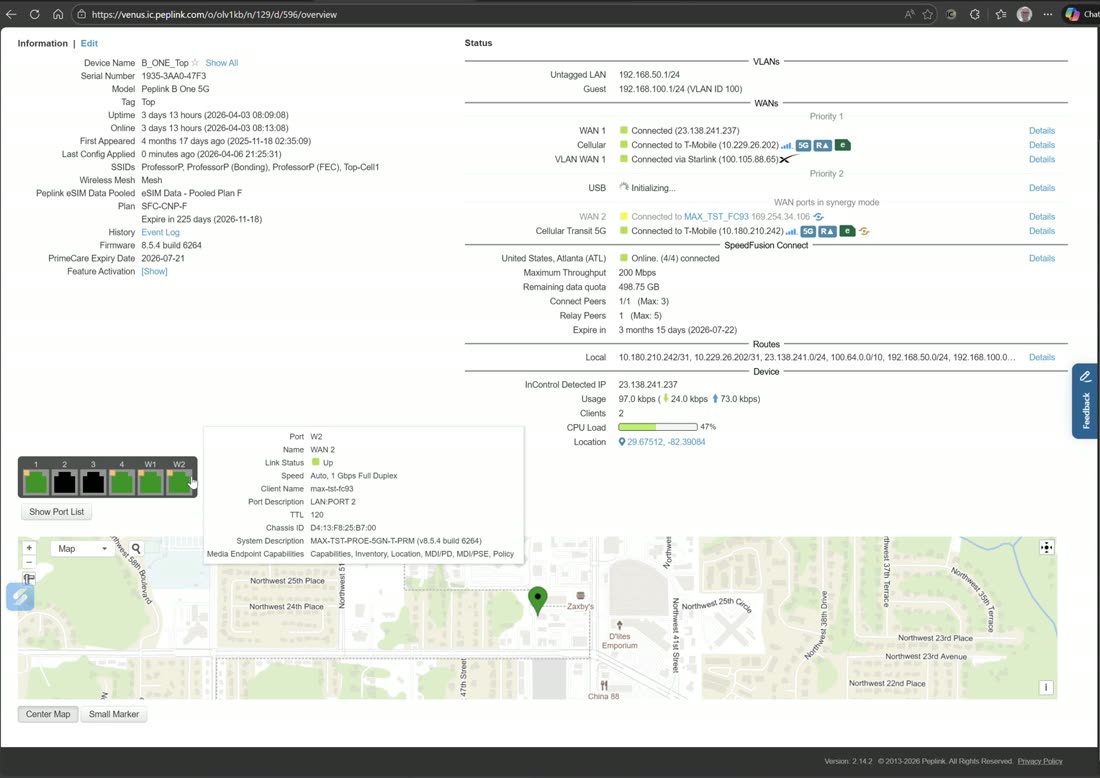
Webinar: Virtual WAN (VLAN-as-WAN) and the activation license
From Peplink University with Professor P.
Watch: related training videos
- Peplink University Monthly Webinar | The Virtual WAN Activation License (Peplink University, 33 min)
- Browse the full Video Library →