
Synergy Mode, introduced in firmware 8.3.0, lets one Peplink router absorb the WAN ports of other Peplink routers and treat them as its own. A Balance with two cellular MAX units synergized behind it stops being three boxes to manage — it becomes one router with every WAN on one dashboard, one outbound policy, and one SpeedFusion configuration. This page is the complete setup guide: supported hardware, licensing, prerequisites, the step-by-step, and the gotchas we hit in the field.
What Synergy Mode actually does
Two roles are involved. The Synergy Controller is the router that runs the site — your routing, firewall, outbound policy, and SpeedFusion all live here. A Synergized Device gives up its identity and acts like a multi-WAN expansion module: its cellular and wired WANs are handed to the controller as if they were built in. The cable between them is the Synergy Link, a single Ethernet run that carries both control and data traffic.
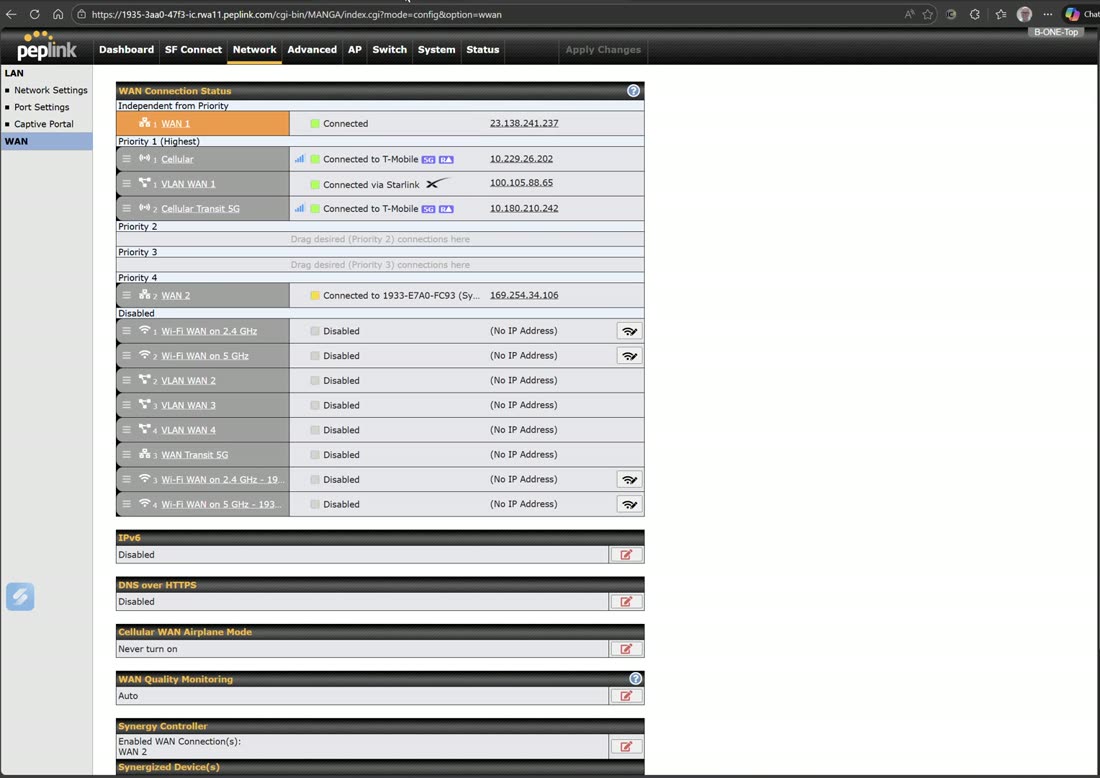
Once a device is synergized, its WANs appear on the controller’s dashboard alongside the native ports, tagged with S/N identifiers (S for synergized interfaces), and they are first-class citizens: you can use them in outbound policy rules, routing decisions, and SpeedFusion tunnels exactly like a built-in port.
Which devices can do it
Support differs by role, and the distinction matters:
- Can be a Synergy Controller: X Series, Balance series, MAX series, UBR Plus, and the B One series.
- Can be a Synergized Device: Balance series, MAX series, UBR series, and the B One series. The X Series cannot be synergized — it can only sit at the top as the controller.
A typical pairing: a rack-mounted Balance as the controller with a MAX BR1 Pro 5G synergized behind it — the site gains a 5G WAN without replacing the Balance.
Licensing: the Care Plan rules
Know before you buy
Synergy Mode is a Care Plan feature, and the system checks — the controller validates subscriptions through InControl 2 before it will activate Synergy.
- The controller must have an active Care Plan (PrimeCare or Essential Care, per its model family).
- With that in place, your first Synergized Device is included — no extra license.
- Each additional Synergized Device needs its own active Care Plan.
- If the controller’s Care Plan expires, Synergy Mode stops working — the synergized WANs drop off the controller. Treat the renewal date as an operational deadline, not paperwork.
Before you start: the checklist
Most failed Synergy setups die on one of these four items, so check them before touching a cable:
- Same firmware on both ends, 8.3.0 or later. A controller on 8.6.0 and a device on 8.5.4 will not pair — upgrade both to the identical release first.
- The Synergized Device must be factory-fresh. After upgrading its firmware, factory-reset it and change nothing. Any configuration you apply before pairing can block synergization — resist the urge to “just set the admin password first.”
- The controller needs one active WAN besides the Synergy Link that can reach InControl 2, for the subscription validation above.
- One free WAN port on the controller to receive the Synergy Link.
Setting it up, step by step
- Upgrade both routers to the same firmware release (8.3.0+), then factory-reset the device you intend to synergize. Leave it unconfigured.
- Cable a LAN port on the Synergized Device to a WAN port on the controller. This run becomes the Synergy Link.
- On the controller, go to Network › WAN, scroll to Synergy Controller, and click edit.
- Tick the checkbox for the WAN port you cabled — that designates it as the Synergy Link. The port itself needs no other manual configuration.
- Save and Apply Changes.
- Wait about five minutes while the controller adopts the device and synchronizes its WANs. When it finishes, the synergized WANs appear on the dashboard with S/N tags.
In InControl 2, give both units names that make the roles obvious — we tag controllers _SC and synergized devices _SD in the device name, so nobody in the NOC ever wonders which box is which. Our quad-4G Transit Duo recipe walks this exact flow on real hardware.
Life after synergization
- The synergized WANs behave like native ports — use them in outbound policy, routing, and SpeedFusion profiles with no special handling.
- Manage the Synergized Device through the controller. Its own web UI is reachable from the controller’s dashboard (it shares the controller’s admin credentials) — you rarely need it, but it is there for modem-level settings like SIM selection.
- There is no fixed limit on synergized devices. You are constrained by WAN ports to land Synergy Links on — and, since 8.6.0, by a ceiling of 40 Synergy WAN connections on the models that support that many.
Field note
Adding a WAN to the router is not the same as adding it to your SpeedFusion tunnel. A freshly synergized 5G interface carries no traffic until you steer traffic onto it — add it to the relevant SpeedFusion profile or outbound policy rules, or it will sit there looking healthy and doing nothing. This bites someone on almost every deployment.
Version notes: how Synergy has evolved
- 8.3.0 — Synergy Mode ships. Physical WANs only.
- 8.4.0 — virtual VLAN WANs supported across Synergy, so a synergized device can hand up VLAN-as-WAN interfaces too.
- 8.6.0 — a per-WAN transport mode setting (Performance vs Compatibility), up to 40 Synergy WAN connections on selected models, BYO eSIM details visible in Synergy mode, a fallback TLS certificate that keeps older peers connecting, plus fixes for WAN counts on the device display, WAN mapping after config changes (no reboot needed), and link drops under saturation. Everything in 8.6, categorized →
When Synergy is not the answer
If all you need is one more wired WAN input and you have a spare VLAN, the Virtual WAN activation license (VLAN-as-WAN) adds WAN capacity without a second chassis or a Care Plan dependency. Synergy earns its keep when the extra capacity is cellular — radios, antennas, and SIM slots you cannot license into existence — or when the WANs need to live physically elsewhere, like a roof enclosure feeding a rack downstairs.
Watch it done
Short on time? Peplink’s own 30-second “What is Synergy mode?” is the elevator version.
Related reading
- All WAN options & technologies — Synergy is one of seven ways to feed a WAN into a Peplink.
- Recipe: quad-4G bonding router with two Transit Duos — the build the walkthrough video covers.
- WAN Settings — where Synergy lives in the UI, alongside Starlink Mode and the other advanced WAN features.
- What’s New in Firmware 8.6 — the latest Synergy improvements and fixes.
- Peplink’s original Synergy Mode announcement — the official 8.3.0 release thread.