
Three group tools that keep sites honest.
Captive portals
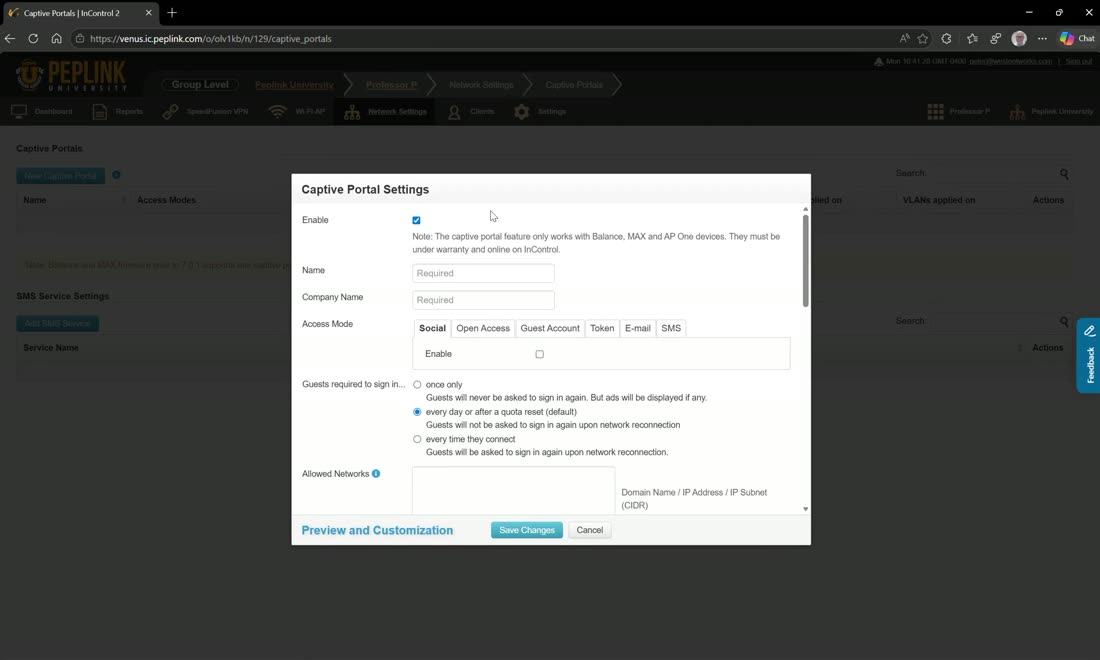
Click New, give the portal a name, then pick an access method. InControl 2 gives you several:
- Social access
- Open access
- Guest accounts — issue usernames and passwords
- Tokens — generate tokens and hand them out
- Email authentication with an allowed-domain restriction
Email auth as a “poor man’s 2FA”
Peter’s favourite is the email option paired with an allowed domain. Say you stand up a portal for a university and only want employees on it: set the allowed domain (e.g. university.com). A guest enters their email, the portal emails them a code, and they have to sign in with it. It isn’t RADIUS and it doesn’t stop device sharing, but it does force authentication with a token tied to a specific account on an approved domain — keeping anyone off the domain off the network.
You can preview and customise the portal with your own logo, text, and images, then assign it to either a Wi-Fi SSID or a VLAN (open the VLAN under VLAN Networks and select the captive portal there).
Connection tests
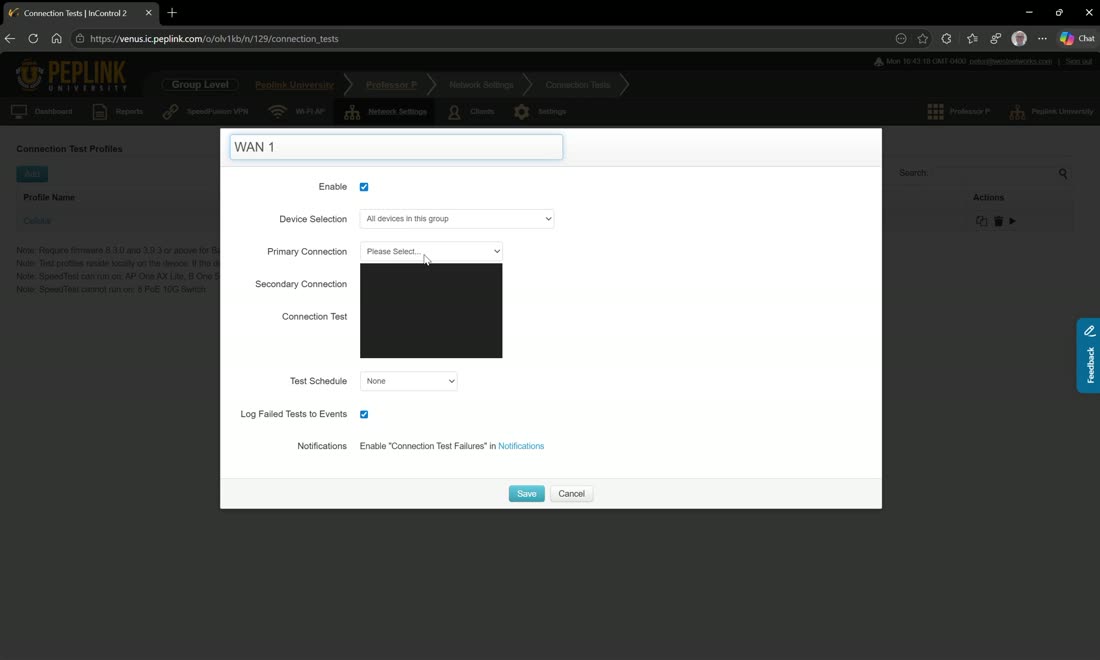
When you have a fleet of internet connections and want to confirm they’re all pulling their weight — for example, checking every morning before the day starts — create a connection-test profile. You choose the target devices (all devices, or by tag) and the primary connection to test: Ethernet WAN, Wi-Fi, cellular, or virtual WAN, with an optional secondary such as OpenVPN.
- Set the test type — a speed test with a pass threshold (e.g. it must hit 100 Mbps × 100 Mbps).
- Set the schedule — e.g. every day at 7am.
Each morning the router runs the test, and results land under Reports → Connection Test Reports.
Site survey
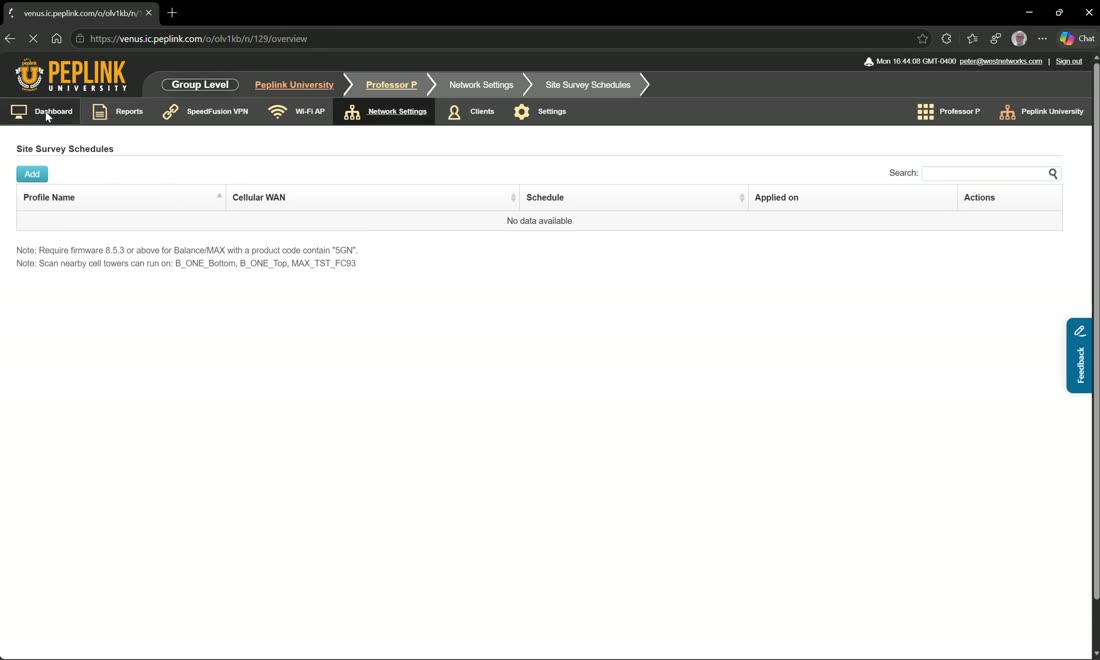
Site survey only works on 5G-capable routers. From the group, add a profile, set device scope to all (for cellular), choose a test schedule (or none), save, and hit Run. It runs on every device that supports cellular and scans what’s available in the area.
The scan briefly takes cellular offline
Running a survey shuts the cellular radio down, performs the scan, then reconnects — so on a single-modem device like a BR1 that router goes offline during the survey. Watch for the radio resetting and reconnecting in the dashboard.
Results appear in the device-level report (see Device Level), sorted good / medium / bad. You’ll see each carrier — Verizon, AT&T, FirstNet, T-Mobile and so on — along with band, frequency, channel, signal, and PCI. That lets you decide what to lock onto: a band showing 100 MHz of availability (versus 10 or 40 MHz) gives you far more bandwidth, so you might PCI-lock or channel-lock onto it. The survey is independent of whatever SIM is in the router.