
The organization level (orange) is where you set things that apply across every group. A user added here can see every group in the org.
Org-wide SSIDs & grouped networks
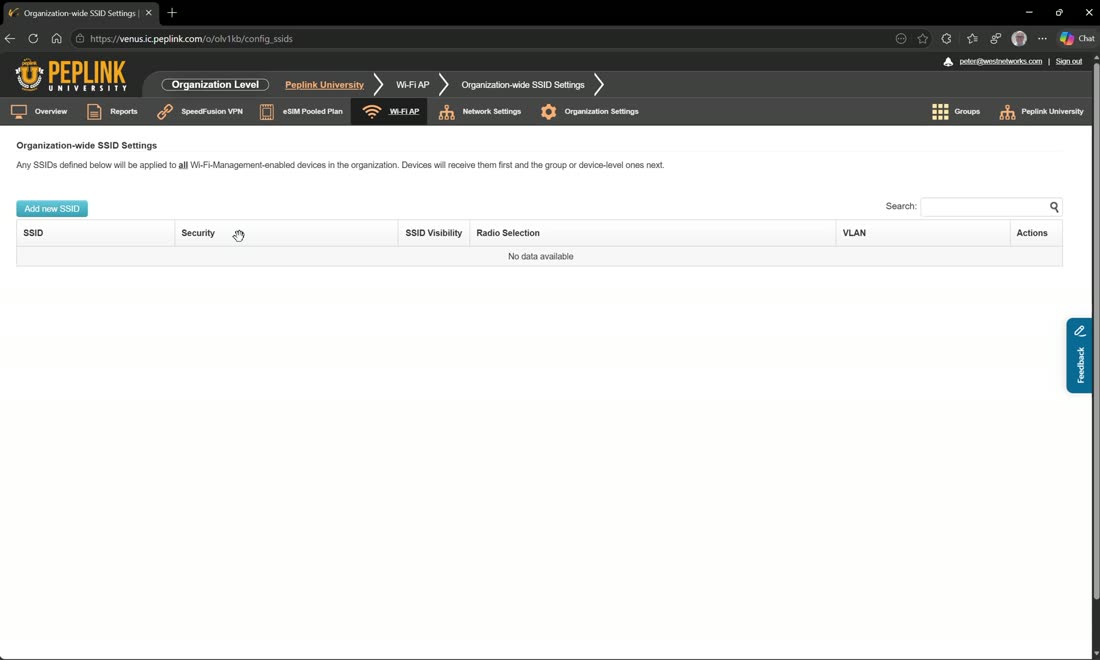
You can now create organization-wide SSIDs — new since 2.12, you couldn’t do this before. Define an SSID here (enable it, choose e.g. WPA3-Enterprise and enter your primary RADIUS), and every single Wi-Fi-managed router in the org gets it. It’s the clean way to guarantee the same enterprise authentication across your entire network.
Org SSIDs apply to everything — and win first
There is no filter option on org-wide SSIDs; they are assigned to all Wi-Fi-enabled devices. Any SSID defined at the org level is applied first, then group- or device-level SSIDs after.
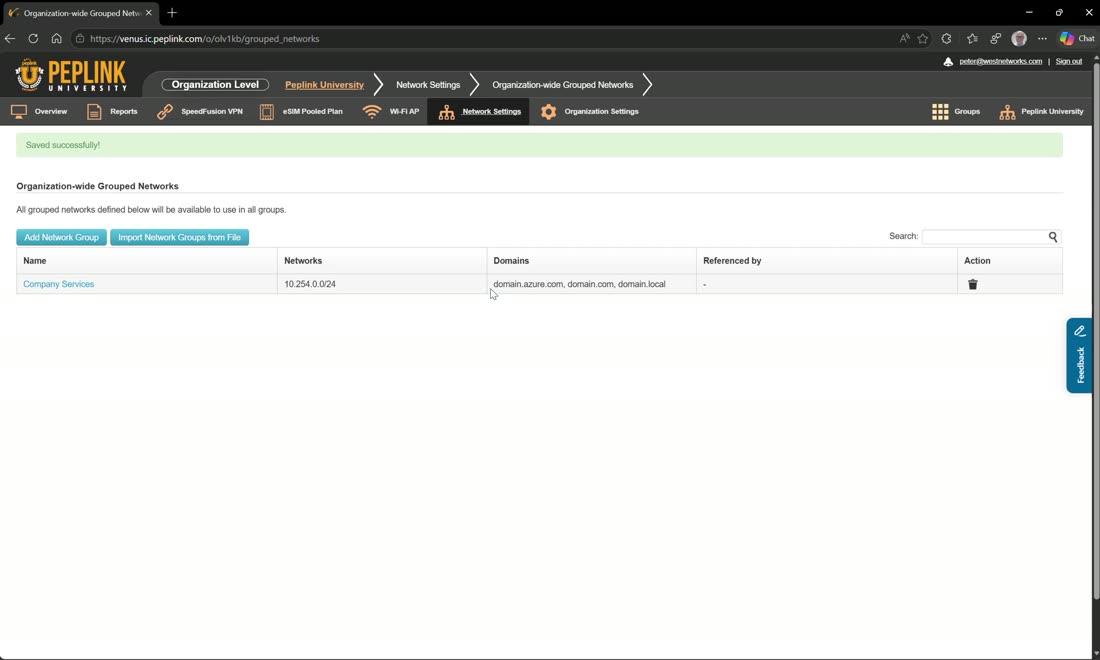
Grouped networks are shared across all groups and are the building blocks for firewall and outbound policies. For example, a “company services” group can hold your server subnets and domains (a network like 10.254.0.0/24, an internal domain.local, a public domain.com, a cloud service, etc.).
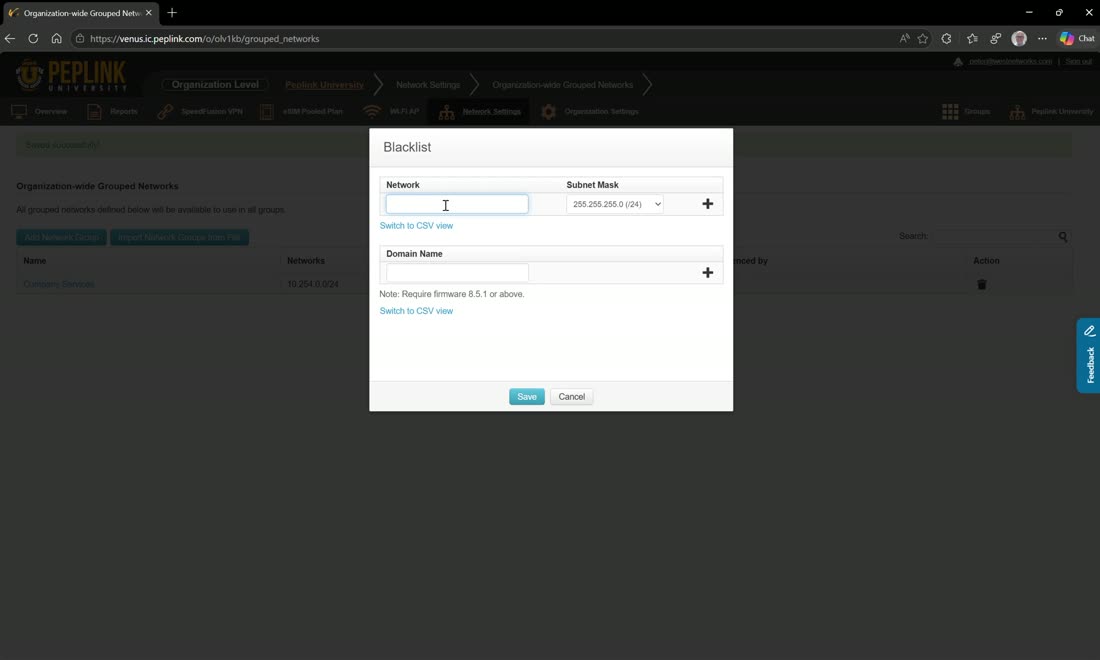
The other common one is a blacklist — a grouped network mixing IP addresses and domain names that you then reference in a firewall or outbound rule to block. Because it lives in InControl, updating that one list pushes to every router.
Adding & managing devices
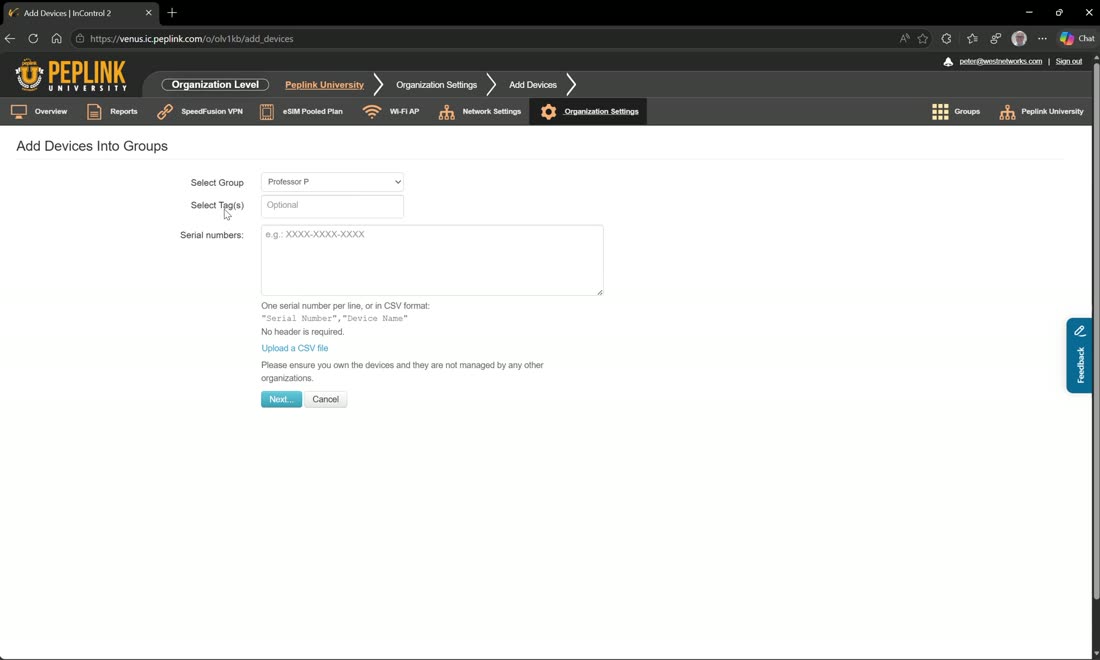
Add devices from Organization Settings: pick which group the device goes into, enter the serial number, add a tag, and hit next. You can add devices at the org level, but they always have to land in a group.
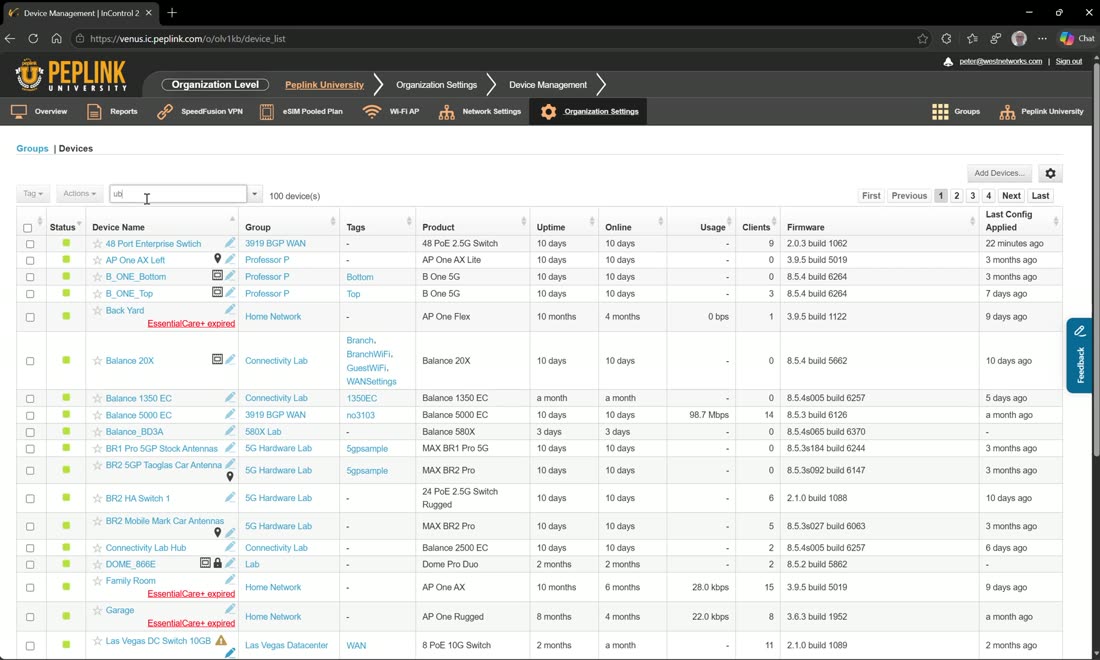
Device Management lets you manage every device in the org from one pane of glass — great for checking firmware or finding a device. Search by serial number, ICCID, or anything; a search will surface the device along with the group it lives in and the firmware it’s running (so you can confirm it’s up to date).
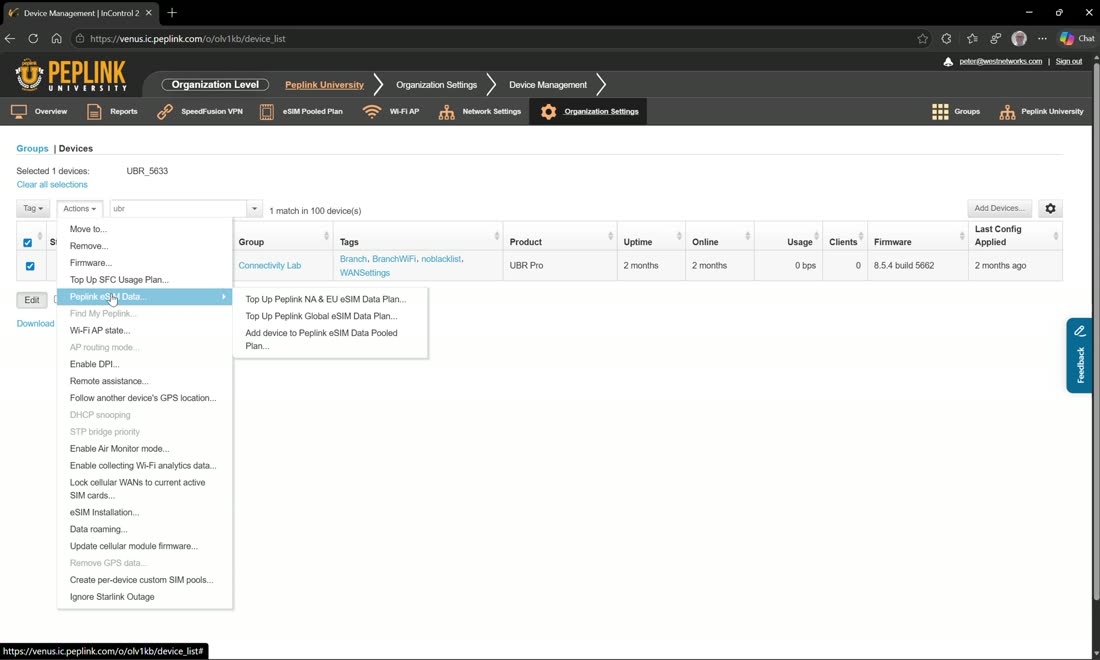
Select devices to tag them (e.g. add a “no-blacklist” tag right from the org level) or run an action. The action menu is deep: move or remove the device, push firmware, SpeedFusion top-up, add to your eSIM pool, find/set Wi-Fi state, enable DPI, enable remote assistance, follow another device’s GPS location, lock cellular WANs to the current active SIM, install an eSIM, set data roaming, update cellular module firmware, create per-device custom SIM pools, and ignore Starlink outage. For a switch you also get DHCP snooping and Spanning Tree priority.
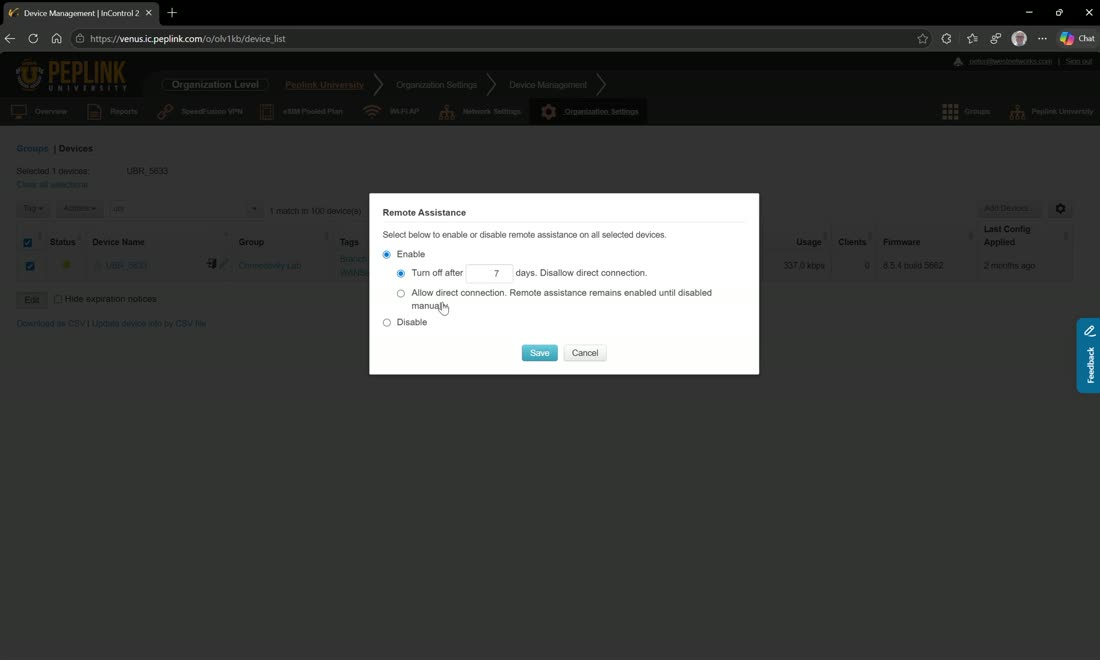
Remote assistance can be enabled for 7 days, or set to allow a direct connection until it’s turned off, or disabled. Turn it on and save, and support can reach the device; come back to the action menu to turn it off when you’re done.
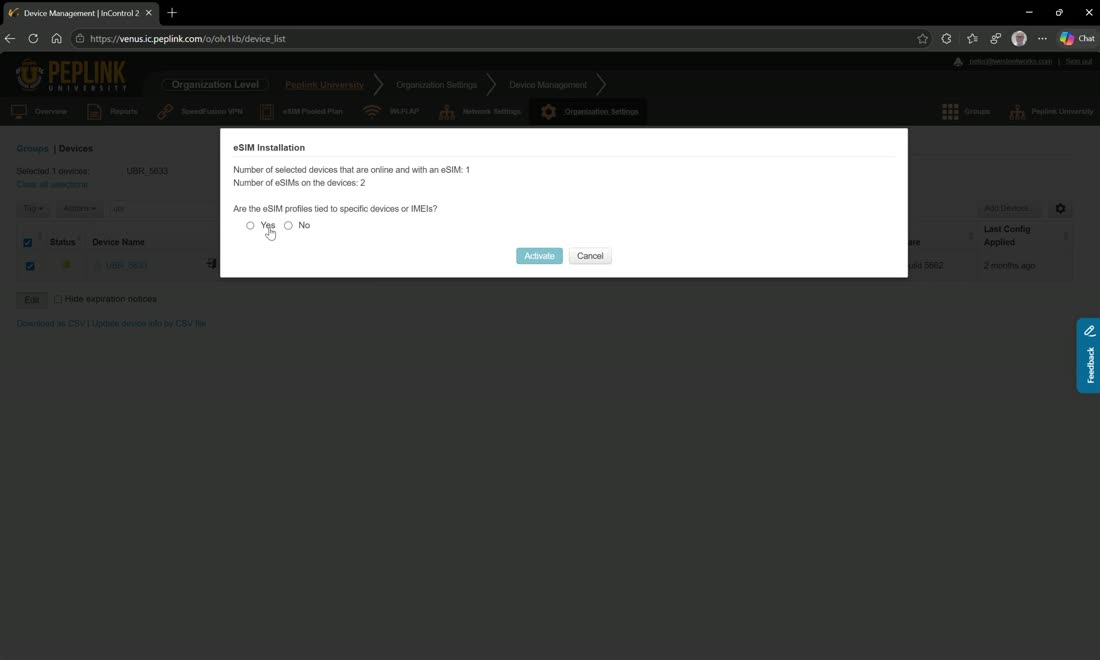
At the org or group level, eSIM installation is done at scale: for dual-SIM routers you assign an eSIM profile to a chosen SIM (e.g. cellular 1), upload a CSV template, and activate the codes. (At the device level the eSIM screen looks different.)
Org management & settings
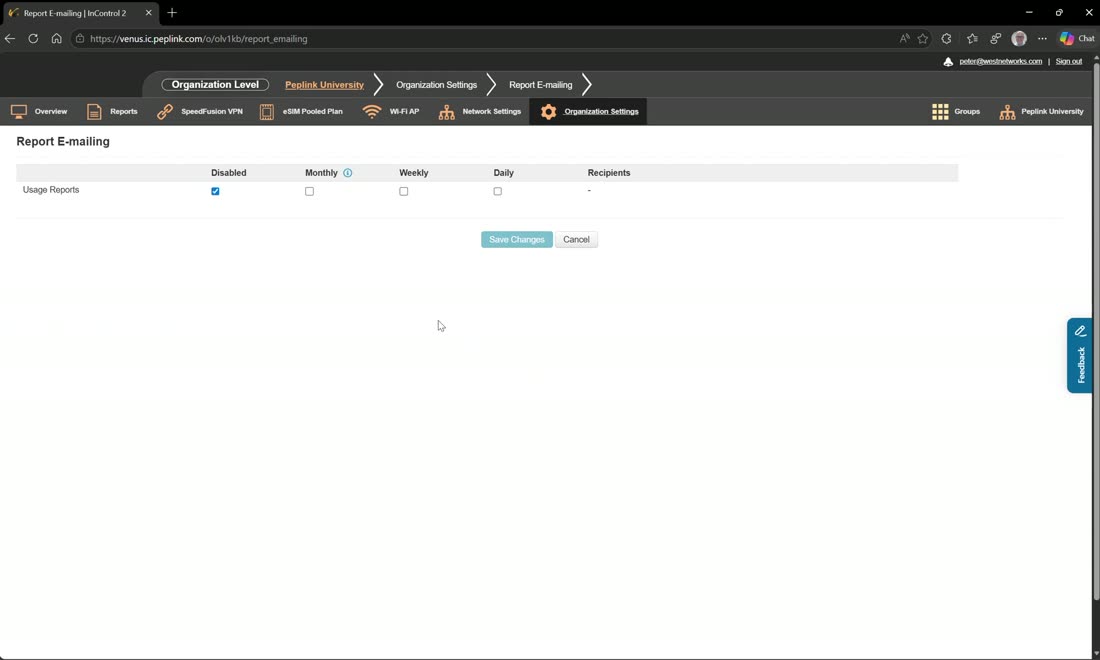
Report emailing can be enabled monthly, weekly, or daily, sent to a chosen recipient set — all organization users, all organization reviewers, administrators, or any other email address.
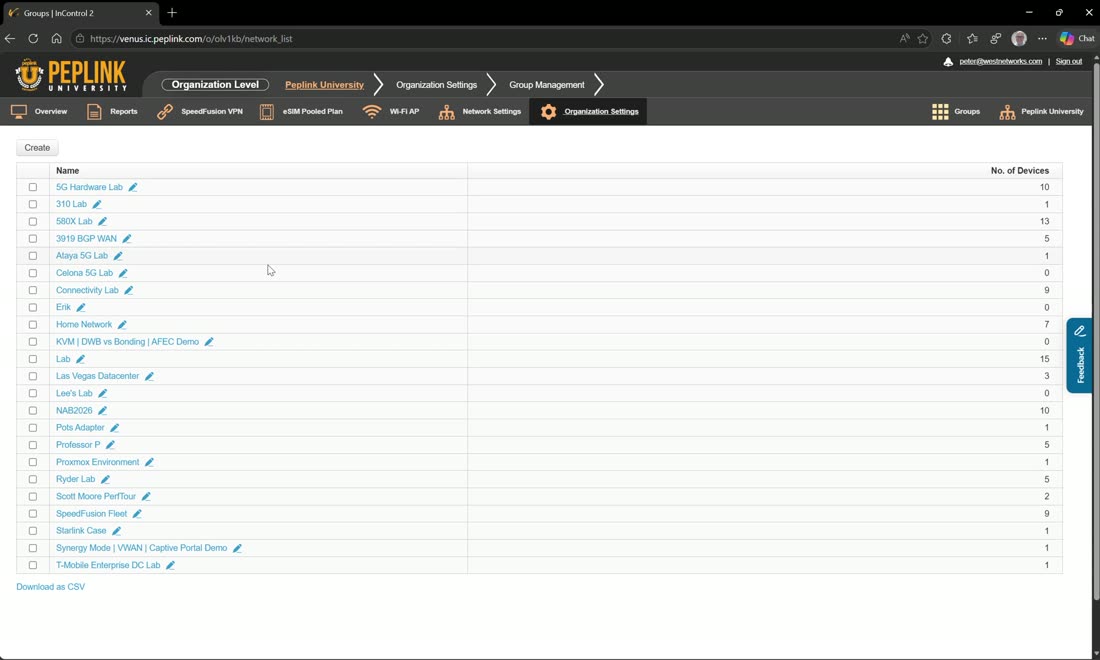
Group management is where you create and delete groups. Select one or more groups and you can delete them or move them to a new organization — select two groups and the move spins up a brand-new org containing those groups with all their settings, devices, and everything you’ve configured intact. It’s also handy for housekeeping (removing empty groups with zero devices).
Moving groups is one-way
Moving groups to a new organization is a one-way transfer — it is not reversible. InControl warns you and asks you to confirm before proceeding.
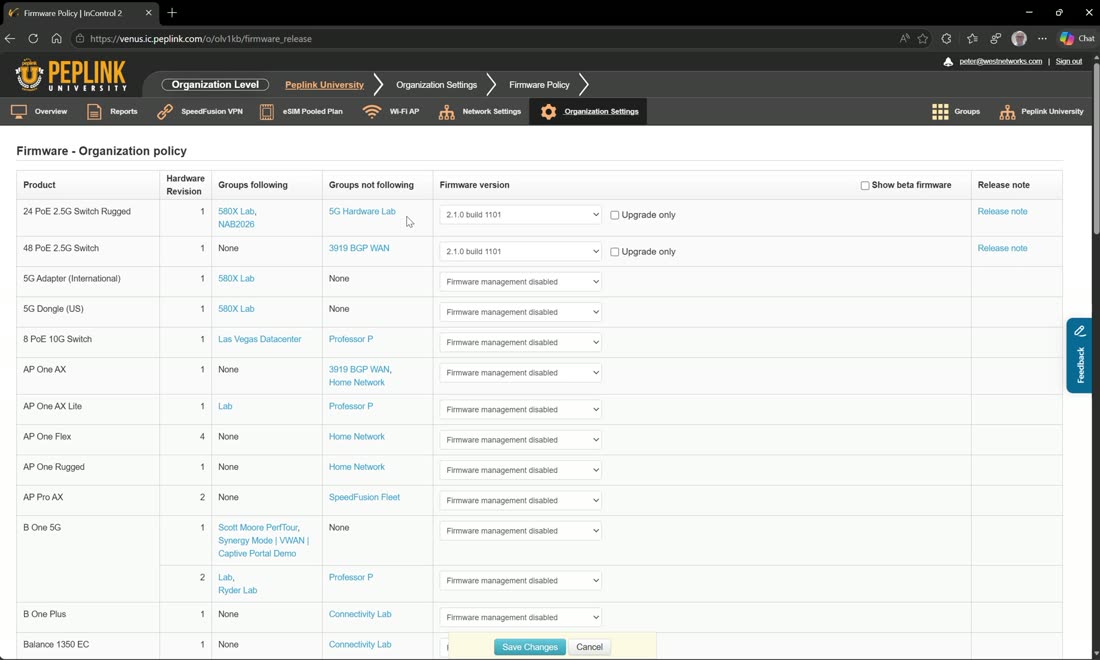
Firmware policy lets you standardize firmware org-wide — for example, hold all your switches on a specific version so the whole org is consistent.
Use org-wide firmware policy with care
Peter doesn’t typically recommend org-wide firmware policy: you lose visibility into what individual groups are doing, and it can get chaotic. If you bring in a device to update it and it reboots, the org policy can pull it right back to the mandated version. It’s the best tool if your goal is a hard standard (“everybody on this firmware”) — otherwise leave it off.
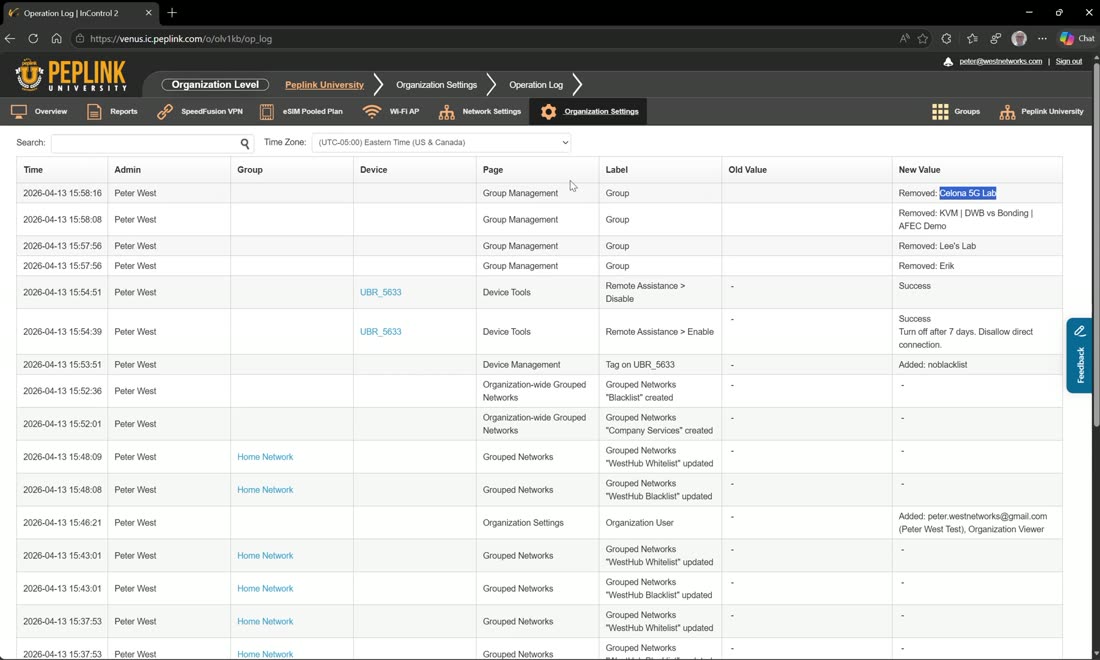
The operational log is a non-editable, auditable record — you can’t delete the logs. It tells you exactly what’s going on, so when someone reports “this broke,” you can check what actually changed and who did it (“why did you log in and remove the 5G lab?”). Invaluable for answering “what changed?”
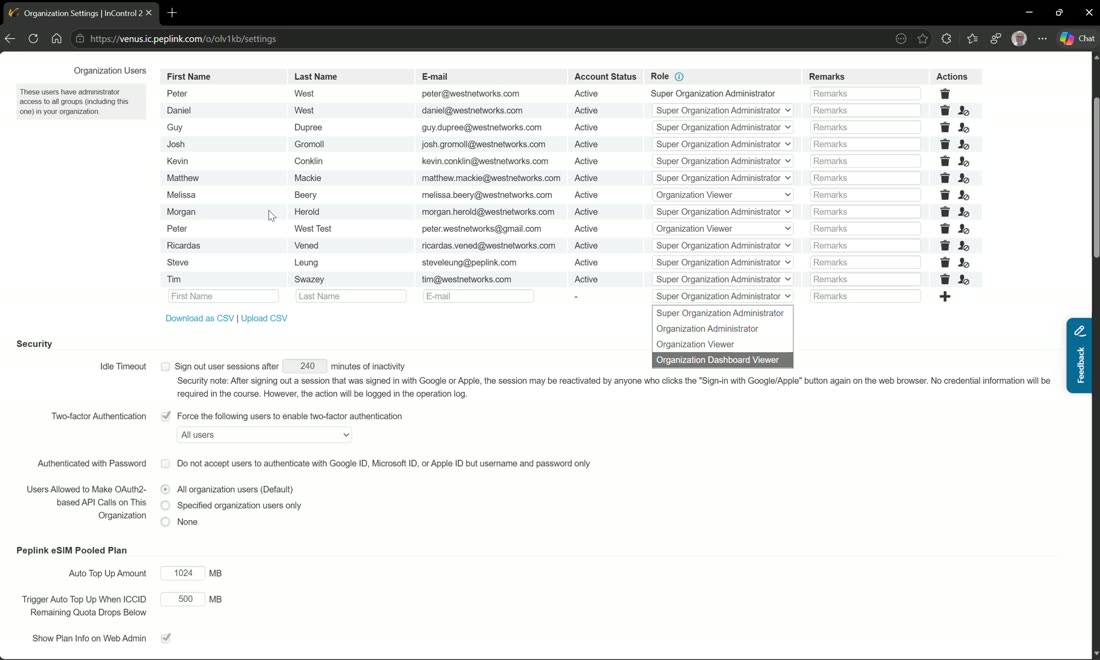
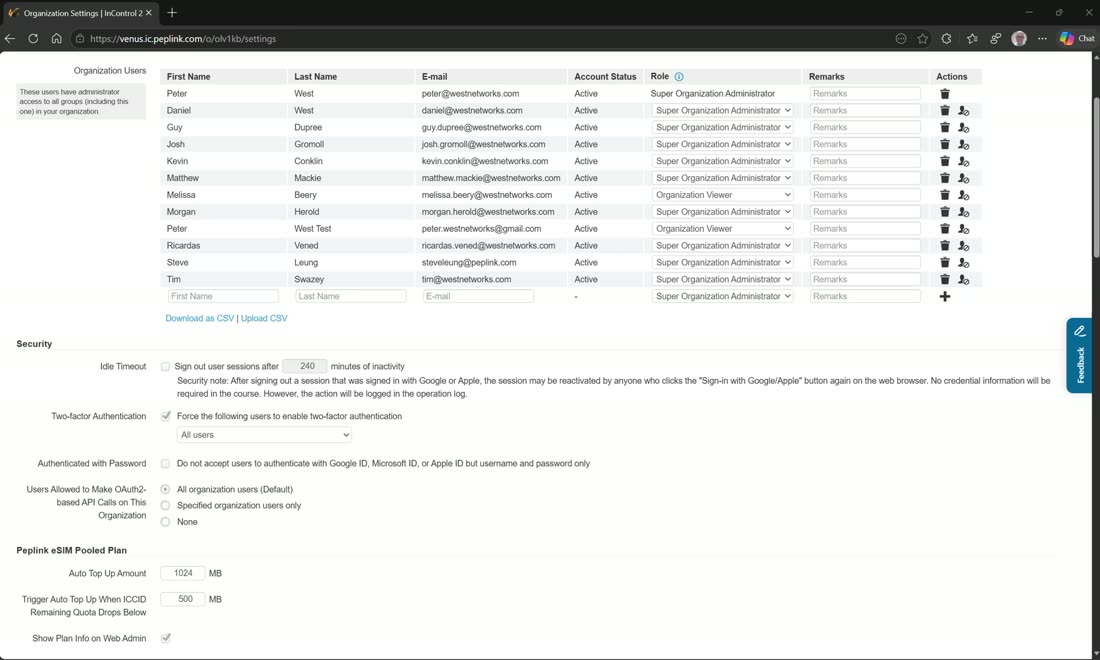
Organization Settings shows your organization-level users and lets you add new ones. Roles available are super organization administrator, organization administrator, viewer, and dashboard viewer.
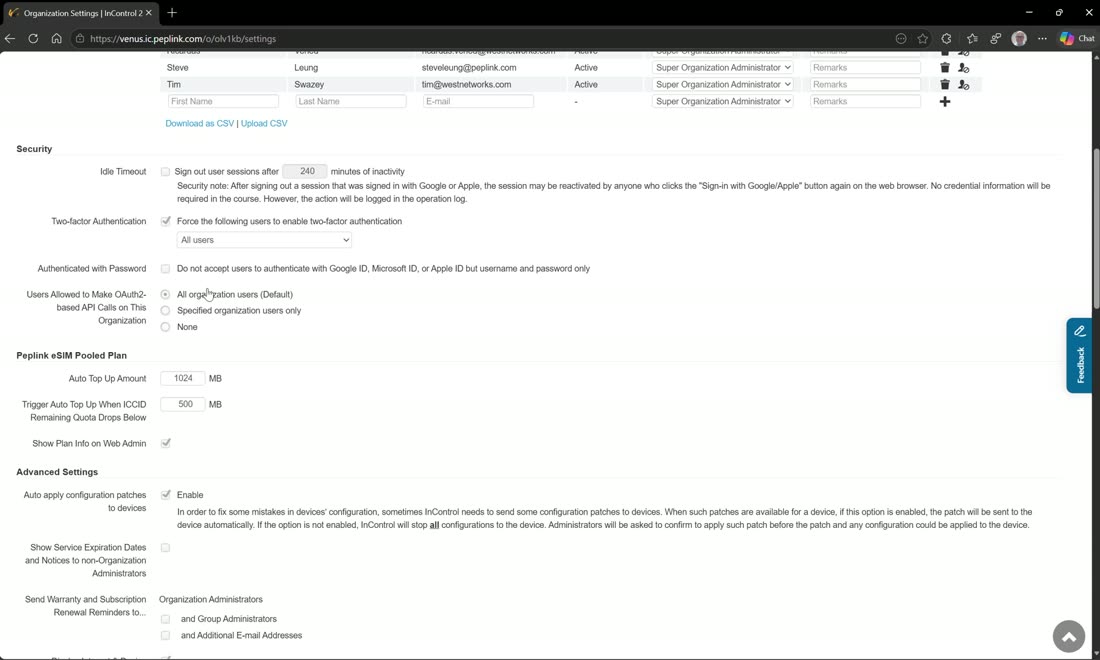
You can also set organization-wide requirements and defaults, including:
- Sign out after a set amount of time, and force two-factor authentication.
- Require password auth — i.e. don’t accept Google, Microsoft, or Apple IDs.
- Allow users to make OAuth2-based API calls.
- eSIM pool-plan defaults — top-up amount, top-up trigger, and whether to show plan/expiration info on the web admin.
- Apply configuration patches; send warning subscriptions and who they go to; display internet availability; show all settings to organization viewers.
- Peplink-app behaviour — allow managing devices in the app, and whether removing a device from the app also removes it from InControl.
- Your own custom logo and a default address.
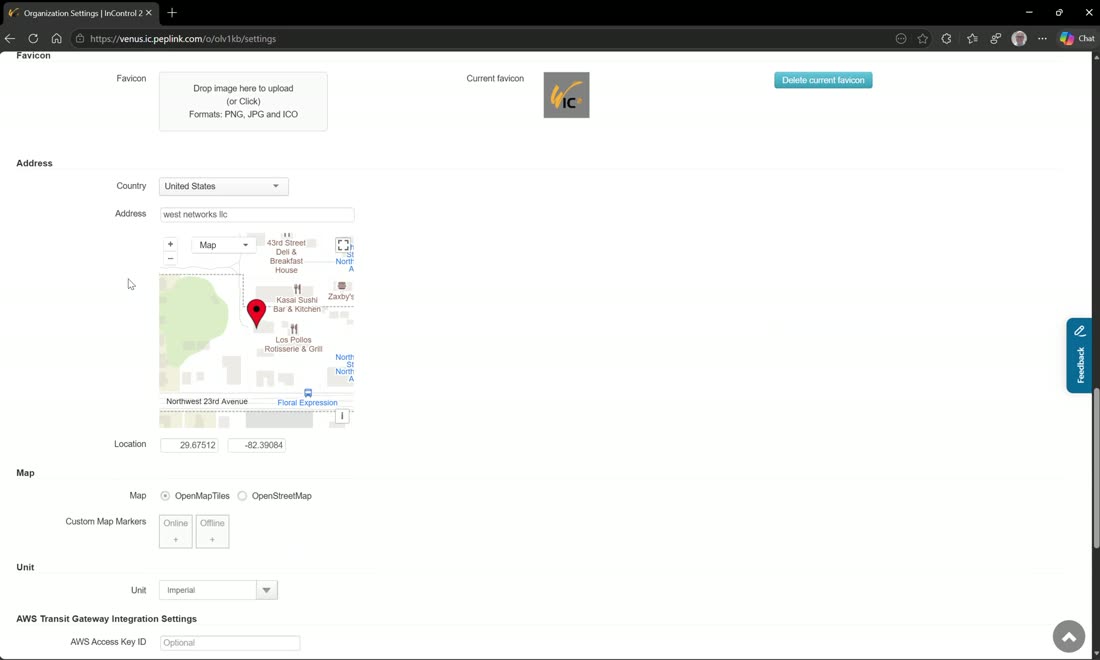
Custom map markers let you upload your own icons for the map (one customer wanted a specific ambulance icon, for instance). You also set your units, AWS Transit Gateway, FlightAware API, and the method used to locate devices by cell ID and signal (Google Maps or OpenCellID) — useful when GPS is giving you trouble, though it needs an API key.
Deleting an org takes 28 days
To delete an organization, make sure it has no devices — it will then delete after 28 days.
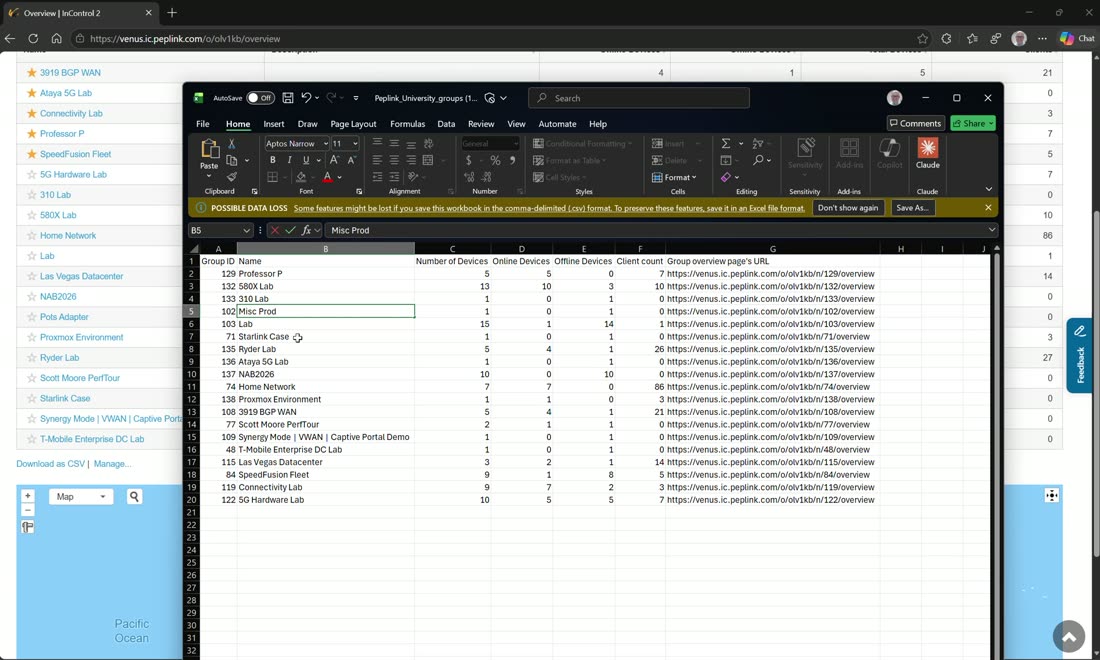
You can download a CSV covering your groups — group ID, the group’s URL page, device counts (all/online/offline), and client counts — for your own reporting.
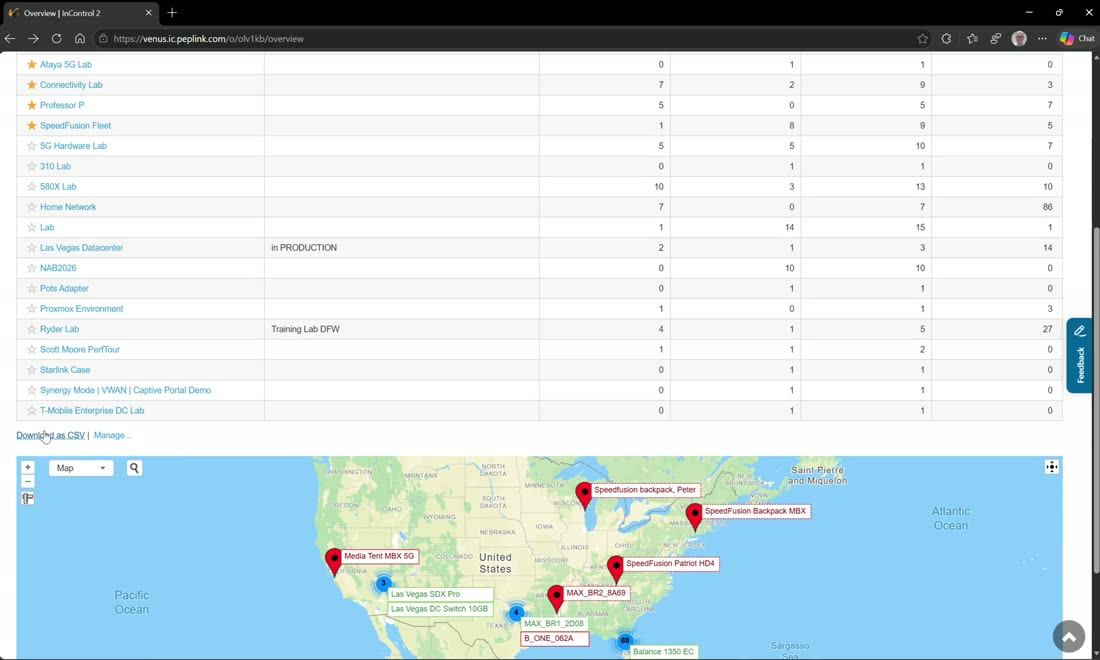
Star a group (or device) and it floats to the top of your list — a fast way to keep the groups you’re actively working on within reach instead of searching every time. You can still search and filter as well.