
- Per-WAN bandwidth limiting — upload/download caps are now enforced on actual traffic, per interface.
- IEEE 802.1p CoS values supported on VLAN-tagged and virtual VLAN WANs.
Peplink shapes traffic through user groups, bandwidth control, and application queues.
User groups
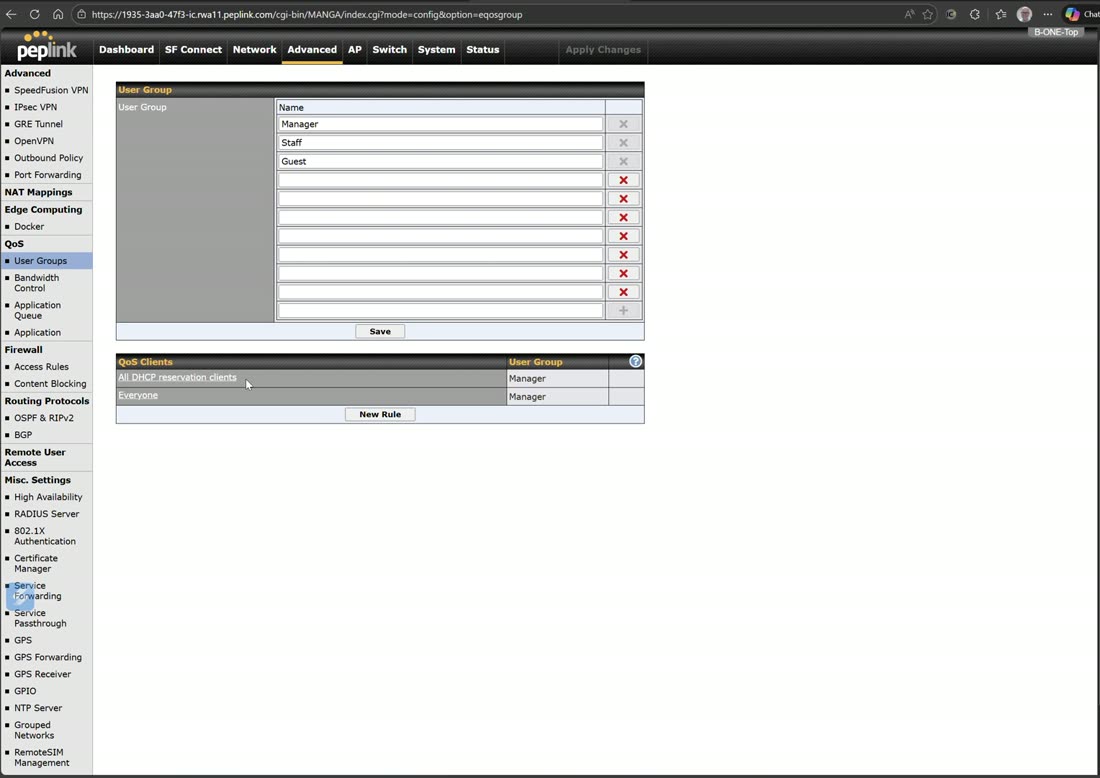
The classic three groups (Manager, Staff, Guest) can now be renamed and expanded to ten total. You then create rules that assign devices to a group — for example, a rule matching client-type IoT puts every IoT device into the Guest group (remember to save the rule).
Bandwidth control
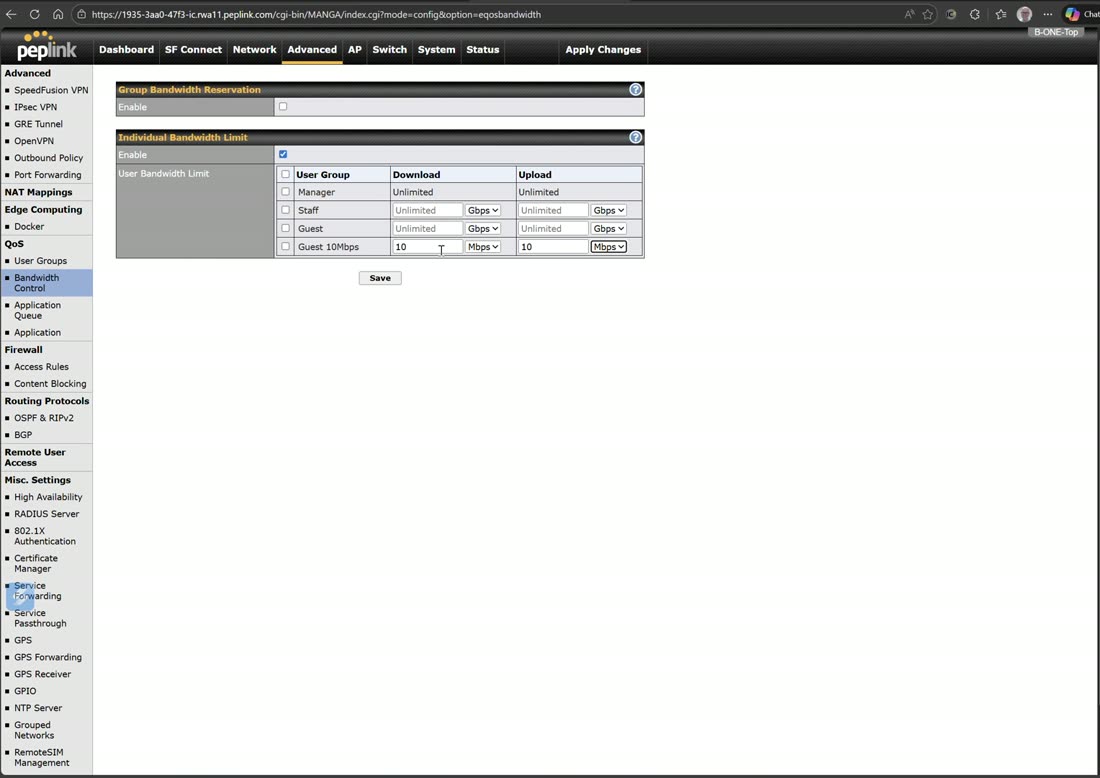
Enable individual bandwidth limits and set a per-group cap — e.g. hold the Guest group to 10 Mbps, so every IoT device landing there gets only 10 Mbps.
Bandwidth groups and reservations let you guarantee each group a percentage of available internet, but this applies to the top three groups only — not to any of the additional groups.
Reservations vs. queues
Peter notes he rarely uses percentage reservations anymore (they were handy on old cable-modem setups) and now leans on user-group limits plus application queues instead.
Application QoS
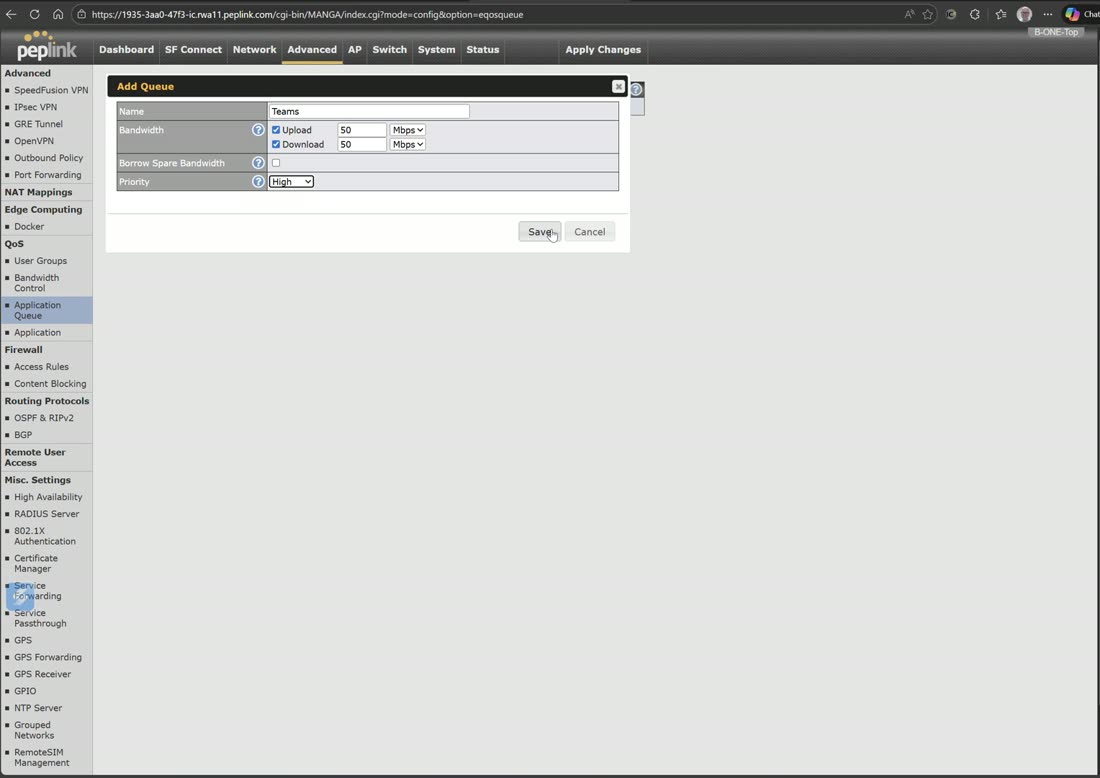
The throttling application queue lets you create application-level queues. Create a new queue (e.g. Teams → high priority, 50 Mbps up / 50 Mbps down). A queue on its own does nothing, though — it only takes effect once you attach it to an application.
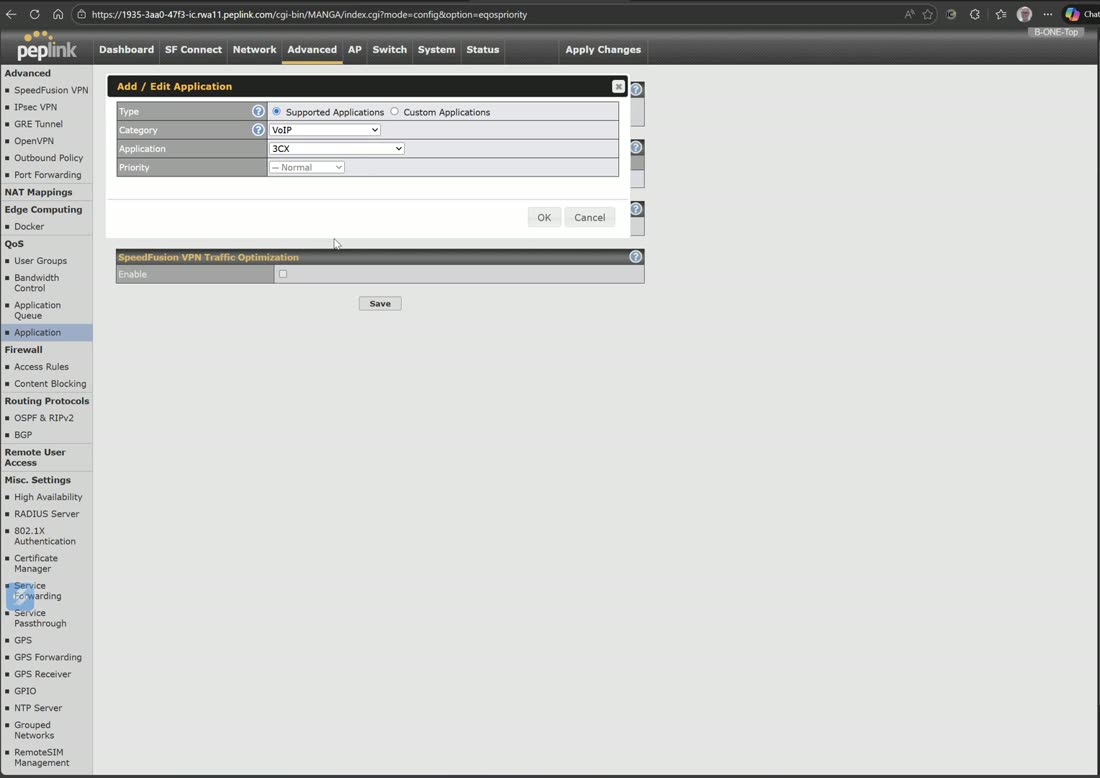
Under Applications, add an application (e.g. Microsoft Teams) and assign it your queue — now that traffic runs at high priority with the 50 Mbps allocation. The same screen also offers DSL/cable optimization and SpeedFusion VPN options.
Tip: check the question marks
On any unfamiliar firmware, click the little ? help icons — they not only describe a setting but sometimes reveal hidden advanced features.